When you are planning to install AutoCAD 2025, the first thing you must consider is whether your system is compatible or not. This step is omitted by many users, and they end up experiencing lag, slow loading, or crashes.
AutoCAD 2025 is a professional CAD system that is applicable in 2D drawing and 3D model-making. It takes a powerful system to work efficiently due to its sophisticated tools and rendering capabilities.
You will know the bare minimum and recommended requirements, the influence of each hardware part on the performance, and which configuration suits your work.
AutoCAD 2025 System Requirements (Windows)
This is the most important section. These are the specifications that you should first check in case you are using Windows.
Minimum System Requirements
These specifications will enable you to install and use AutoCAD, but with limited functionality.
| Component | Requirement |
|---|---|
| OS | Windows 10 or Windows 11 (64-bit) |
| Processor | 2.5–2.9 GHz CPU |
| RAM | 8 GB |
| Graphics Card | 2 GB graphics card (DirectX 11 supported) |
| Display Resolution | 1920 × 1080 |
| Storage | 10GB free (SSD is recommended) |
| Other | .NET Framework required |
It is suitable for basic 2D drawings. Nevertheless, it can slow down in performance with large files.
Recommended System Requirements
These specifications are far superior if you wish to have smooth performance.
| Component | Requirement |
|---|---|
| Operating System | Windows 10/11 (64-bit) |
| Processor | 3 GHz (or 4 GHz turbo) or more |
| RAM | 32 GB |
| Graphics Card | 8 GB (DirectX 12) GPU |
| Display Resolution | 4K displays are supported |
| Storage | SSD and additional free storage |
It is a perfect setup among professionals who deal with intricate designs and 3D models.
AutoCAD 2025 System Requirements (Mac)
AutoCAD 2025 can also be run on Mac users, with slightly different requirements.
Minimal Mac Requirements
This arrangement suffices for simple usage.
- macOS Monterey or later.
- Intel or Apple M-series processors.
- 8 GB RAM
- 1280 × 800 display
- 8 GB storage
Suggested MacOS Setup
Higher specs are preferred in order to have a better experience.
Rather than being a minimum of 16 GB RAM, 16 GB RAM or above is significant. The retina displays enhance the clarity of the vision, and the Apple silicon chip provides enhanced speed and efficiency.
Breaking down Every Requirement into Basic Terms
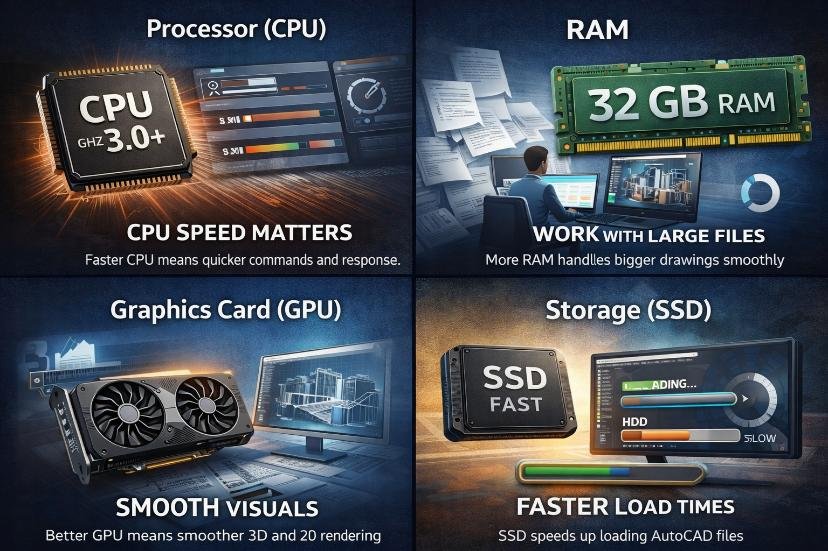
System requirements are read by many users, but the users do not comprehend them. And we will divide them into a simple form.
- Processor (CPU): Why Speed Matters
The speed of the work of AutoCAD is regulated by the CPU.Slow processor – commands, opening files, and switching tools will be slowed down. High RAM may not match a poor CPU, which will make everything slow. The processor is always better (higher clock speed, 3 GHz or higher) than additional cores. - RAM – Working with Large Drawings
AutoCAD is highly dependent on RAM.AutoCAD temporarily stores data in the RAM when you are working on large drawings or multiple files. In case of low RAM, your system can freeze or slow down.Ideal RAM Levels - 8 GB → Light usage only
- 16GB: Moderate work is smooth.
- 32 GB → Ideal to work professionally.
- Increased RAM implies improved multi-processing and a decrease in slowdowns.
- Graphics Card (GPU) – Fluid Visual Effects
The graphics card takes care of displaying, zooming, and the quality of the display.AutoCAD uses the graphics card to perform visual tasks such as line smoothing and 3D display. A weak GPU may lead to delays during the navigation of designs.The dedicated graphics card is always superior to the built-in graphics, and 3D work is particularly preferred. - Storage – The Importance of SSD
Storage influences the speed of loading and saving files in AutoCAD.The software can be run on an HDD but will be sluggish. There is a great deal of difference between an SSD and performance.
It minimizes loading time, accelerates file access, and enhances responsiveness in general.
3D Modeling and Heavy Work Requirement
The requirements are high in case you are going to 3D modeling or complex projects using AutoCAD.
Big data and 3D images require greater power.
Suggested Arrangement of Heavy Tasks
- 32 GB RAM or more
- Premium GPU with 8-12 GB VRAM.
- 4K display support
- Fast SSD storage
This arrangement allows hassle-free operation when dealing with sophisticated designs.
Hard Disk Space and Installation Requirements.
The installation of AutoCAD 2025 needs about 10 GB; however, it is not the total need.
The software also generates temporary files and project data after being installed. This leads to an increase in storage with time.
The space required can be significantly increased should you add more toolsets.
Specialized Toolsets Requirements
AutoCAD has toolsets such as Architecture, Mechanical, and Electrical. These tools have additional features and require additional resources.
Important Points
- Individual toolsets may need 20 GB or more of disk space.
- RAM goes up to 16-32 GB.
- System strength is a factor of performance.
When you put these toolsets into regular use, then an impressive system is required.
What Will Happen If You Do Not Have a Powerful PC
Unless your system is available to meet the requirements, your performance will be a problem.
AutoCAD can act slowly and in an unpredictable manner instead of functioning smoothly.
Common Problems
- Delay in opening files.
- Delay during zoom in/out and editing.
- Freezing of large projects.
- Crashes during rendering
Such problems can be time consuming and can decrease productivity.
Improving the performance of AutoCAD 2025
Although your system may be within the requirements, you may still optimize performance.
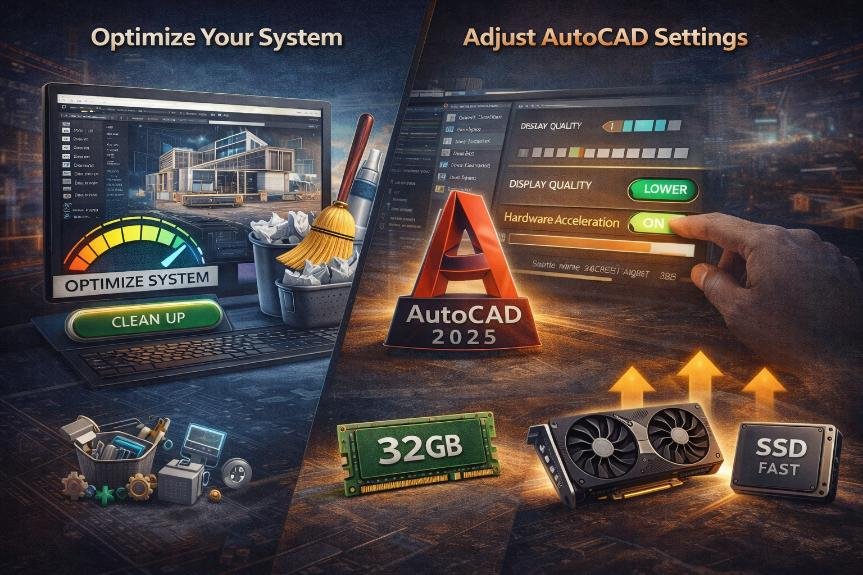
Optimize Your System
Cleaning up and updating your system can aid in the running of AutoCAD.
- Close unneeded background programs.
- Periodically update graphic drivers.
- Keep Windows updated
- SSD instead of HDD.
Such basic measures can make things much faster.
Adjust AutoCAD Settings
AutoCAD has in-built settings and performance.
You can reduce visual effects or decrease display quality to help your system. The better use of the GPU by hardware acceleration should be turned on
Upgrade Key Components
When performance remains bad, the best solution would be to upgrade hardware.
Start with RAM, as it gives the biggest improvement. Then, one can upgrade the GPU or switch to SSD and increase the performance even more.
Is AutoCAD 2025 compatible with a low-end PC?
Yes, but with restrictions.
Simple drafting of 2D can be done on a low-end PC. But complex work will not be easy to perform.
Working with big files or 3D tools may result in lag.
This arrangement suffices for students or amateurs. However, in the case of professional work, a superior system is needed.
AutoCAD 2025 Best System Setup
In case you would like to have a smooth experience, you ought to target a balanced configuration.
Rather than concentrating on a single part, your system ought to be well balanced in terms of CPU, RAM, GPU, and storage.
Ideal Setting (Quick Overview)
- Processor: 3 GHz or more.
- RAM: 16–32 GB
- GPU: 6–8 GB VRAM
- Storage: SSD
- Display: Full HD or 4K.
This arrangement is effective for both the novices and the experts.
Final Thoughts
AutoCAD 2025 is effective software, and it requires a suitable system to function effectively.
The right hardware can save you numerous issues such as slowness, crashes and slow performance.
AutoCAD can still be used with your system, though with limitations, on the assumption that it is only meeting the minimum requirements. To perform well and be used in the long term, always strive to achieve recommended specifications.
Check your system before installing AutoCAD 2025. This little move will have a huge impact on your overall experience.