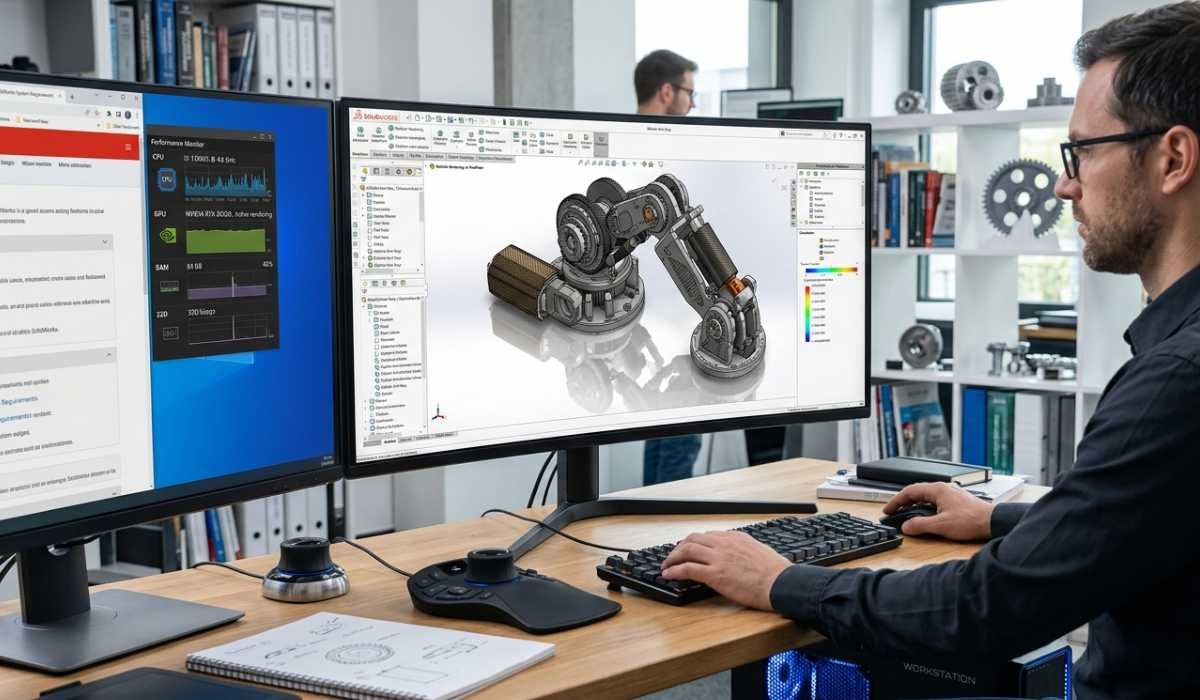
SolidWorks is the most popular 3D CAD software that is utilized by engineers, designers, and architects across the globe. It allows modeling, complex assemblies, simulation, and high-quality renderings. Due to the ability of SolidWorks to work with highly detailed projects, it is important to have a good system to operate smoothly.
Pre-testing your system will help you to prevent lag, crashes, or long rendering times. This guide contains understandable information about minimum and recommended requirements, performance expectations, and hints to streamline your workflow.
Understanding System Requirements
System requirements define hardware and software requirements to operate SolidWorks effectively. These specifications define what your CPU, RAM, GPU, storage, and operating system are capable of, in terms of the size and complexity of your projects.
- Basic operations and small assemblies are possible with minimum specifications.
- Specifications recommended offer a smoother performance, quicker rendering, and stability of large assemblies and simulations.
Knowing these requirements can assist you in planning upgrades and preventing disruptions when working on the design.
Minimum System Requirements
To start up SolidWorks:
| Component | Requirement |
|---|---|
| Operating System | Windows 10 64-bit (Pro, Enterprise, or Education not required) |
| Processor | Intel or AMD dual-core processor, 3.3 GHz or higher |
| RAM | 8 GB |
| Graphics | Certified OpenGL or DirectX graphics card (NVIDIA Quadro or AMD FirePro recommended) |
| Storage | 5 GB free storage |
| Resolution | 1920 × 1080 minimum |
Suggested specifications enable the stable operation of large assemblies, simulations, and the use of many add-ons simultaneously.
CPU Performance
SolidWorks is based on the CPU. It does assembly calculations, simulations, and machine operations.
Simple dual-core processors are capable of handling small projects, whereas multi-core processors such as Intel Core i7 or AMD Ryzen 7 can work better in large assemblies and complex simulations.
Faster clock speeds decrease the rebuild time, enhance animation playback, and accelerate motion studies.
Recommended System Requirements
To run smoothly with larger projects:
| Component | Requirement |
|---|---|
| Operating System | Windows 10 64-bit Pro or Enterprise |
| Memory | 16 GB or more (quarter core or higher) RAM |
| RAM | 16 GB or more |
| Graphics | NVIDIA Quadro or AMD Radeon Pro certified graphics |
| Storage | SSD having at least 20 GB of free memory |
| Resolution | 1920 × 1080 or higher |
Suggested specifications enable the stable operation of large assemblies, simulations, and the use of many add-ons simultaneously.
RAM and Multitasking
The assembly data, the result of the simulation, and the background operations are temporarily stored in RAM.
On the one hand, the 8 GB RAM is sufficient to deal with small assemblies; on the other hand, 16 GB or above is suggested when the project and simulations are complicated.
Increasing the RAM will decrease lag, increase the rate of rebuilding, and enable the use of many add-ons at the same time.
Graphics Performance
Graphics play a crucial role in rendering, RealView Graphics, and 3D visualization.
SolidWorks is optimized for professional GPUs:
- NVIDIA Quadro or AMD Radeon Pro certified GPUs also guarantee the ability to operate steadily.
- Small assemblies can use integrated graphics, but they might have difficulties with complex projects.
- New certified drivers decrease crashes and graphic glitches.
- Professional GPUs are needed in RealView Graphics, shadows, and rendering.
Storage and Load Times
SolidWorks works best when it is installed on SSD. Quick storage enhances simulation, loading time of files, and rendering.
An SSD is necessary in the case of large assemblies, textures, and complicated simulations. Organizing files and emptying temporary data can also enhance performance.
Add-Ons and Simulation Tools
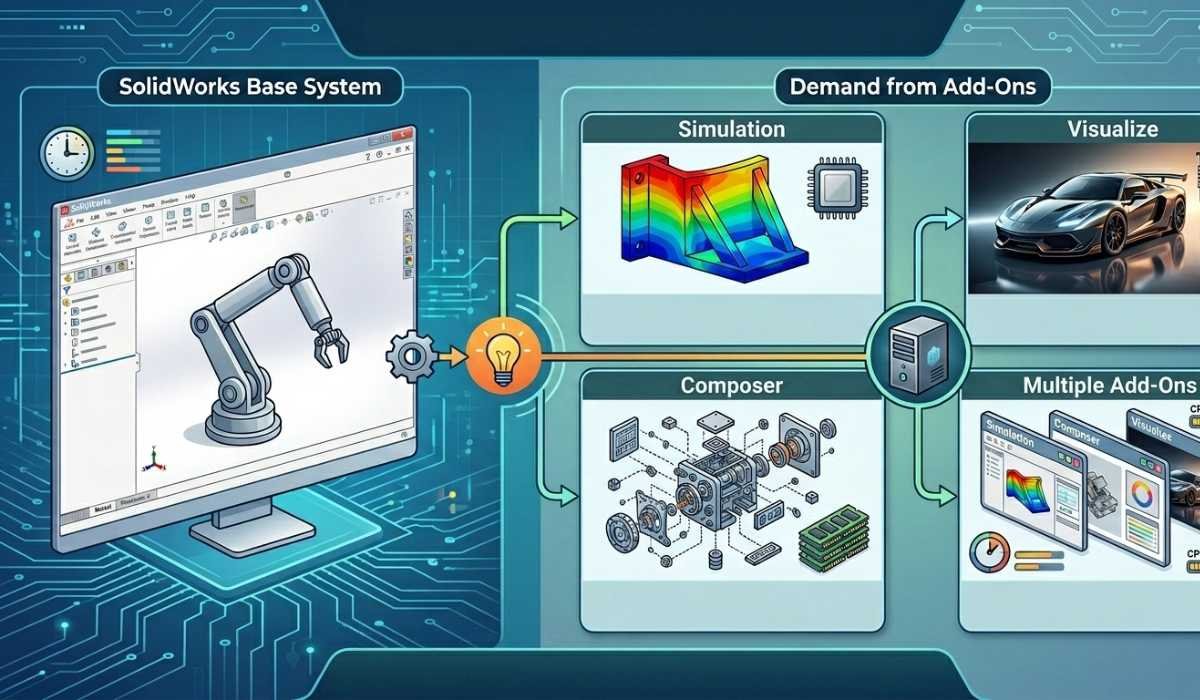
Add-ons such as Simulation, Visualize, and Composer add to the requirements of SolidWorks systems:
- Complex calculations are demanding in terms of CPU and RAM in simulation.
- Imagine the advantages of a high-end graphics card and SSD hard drive for rendering.
- Big assemblies that contain numerous parts and textures require extra RAM.
- Several add-ons that are operational at the same time consume more resources in the system.
Performance Expectations
Minimum Performance
Simple assemblies, small assemblies, and basic modeling. Bulky assemblies can languish, and intricate simulations can be slower.
Recommended Performance
Fluid modeling, rapid display, robust simulation, and easy management of huge assemblies and various extensions.
Performance Improvement Tips
Performance can be optimized by any of the following, even with recommended hardware:
- Reducing graphical effects or shadows if not using a certified GPU
- Installing SolidWorks and projects on an SSD to access files faster.
- Terminating unneeded backgrounds.
- Keeping GPU and system drivers up-to-date.
- Turning on large assemblies in lightweight mode to minimize lag.
Checking Your System
Windows users can press Windows + R and type “dxdiag” and verify CPU, RAM, and GPU.
Windows via Boot Camp, Mac users are advised to ensure that all drivers are installed appropriately.
It is always a good idea to compare your system specifications with SolidWorks requirements to avoid performance problems.
Typical Problems and Solutions
The most common are crashes, slow rendering, slowness with large assemblies, or graphical glitches. The possible solutions are updating drivers, using the lightweight mode, upgrading RAM/ GPU, and SSD storage.
SolidWorks on Laptops
The performance of laptops is determined by the GPU, cooling, and power configuration. Gaming laptops costing more have professional GPUs that are suitable to support big assemblies and simulations.
Older laptops might need a lower graphics setting and the installation of an SSD. Cooling will eliminate thermal throttling, and plugging in will give optimal performance.
Graphics Settings Tips
Optimizing graphics can enhance the performance of SolidWorks in general:
- Modify anti-aliasing, shadows, and RealView settings depending on the GPU.
- Lightweight mode should be used on assemblies that have a large number of parts.
- Use the most recent GPU drivers to be safe.
- Turn off superfluous visual effects when dealing with large projects.
Conclusion
SolidWorks is capable of running on a large variety of systems.
Minimum requirements enable simple modeling and small assemblies, whereas recommended hardware is used to provide seamless performance, quicker rendering, and reliable simulations.
The fulfillment of the system requirements will ensure effective workflow, consistent operation of CAD, and a quality experience in 3D design.