In case you receive the message, “This PC is not compatible with the requirements of the Windows 11 system.”
Don’t worry, though, while attempting to upgrade. A majority of PCs can be repaired by making a few adjustments. With the help of this guide, you will be able to find a solution to the problem within a short period of time and understand why it occurs.
Quick Fix Steps
The easiest and quickest solution to this problem is by addressing the primary factors: TPM, Secure Boot, and CPU compatibility.
Step 1: First Compatibility Check
Install the PC Health Check app by Microsoft. It will indicate precisely which requirement of your PC fails. This application is the simplest for determining the issue without making guesses.
Step 2: Turn on TPM and Secure Boot
Reboot and access BIOS/UEFI options and ensure TPM (or fTPM/PTT) is turned on. Ensure that Secure Boot is turned on. Save and restart.
This action addresses most of the Windows 11 upgrade problems.
Step 3: Update BIOS or Firmware
Go to the site of your motherboard/PC manufacturer and update to the most recent firmware.
Newer firmware can assist Windows in identifying your equipment properly and can fix compatibility problems.
Step 4: Check CPU Support
Compare your processor to the official list of supported CPUs at Microsoft.
Unless your CPU is on a list, it may not be upgradable without a hardware upgrade.
Step 5: Optional—Clean Install (Advanced)
As a last resort, you can do a clean install using a USB installer. This will destroy whatever is in it, so you need to save your files before doing so.
This should only be used in case you are comfortable with advanced procedures.
Why This Error Appears
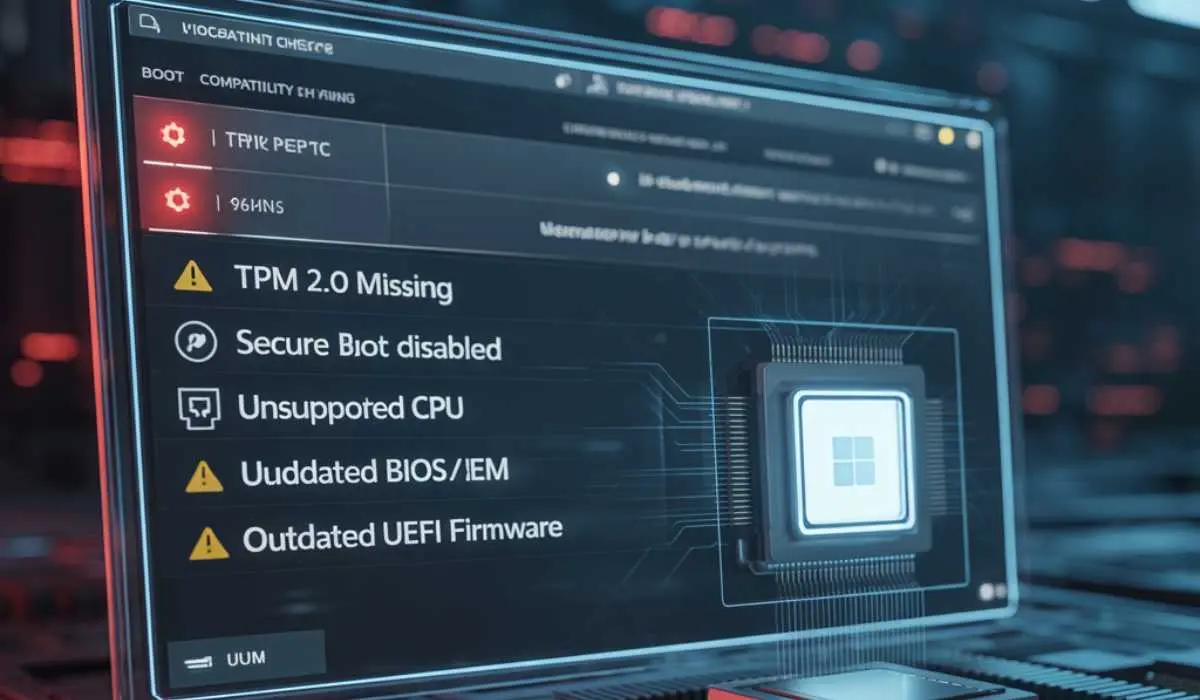
This message can even be induced by high-performance PCs. Microsoft is concerned with security, compatibility, and not only speed or memory. Common causes include:
- TPM 2.0 is not present or switched off.
- Secure Boot has been switched off.
- Unsupported CPU
- Outdated BIOS/UEFI firmware
These tests should ensure that Windows 11 is more secure and reliable across all devices.
Windows 11 Minimum Requirements
The following are important requirements of your PC:
| Component | Minimum Requirement |
|---|---|
| Processor | 64-bit, 1 GHz or faster, 2+ cores, supported CPU |
| RAM | 4 GB |
| Storage | 64 GB |
| Firmware | UEFI with Secure Boot enabled |
| TPM | Version 2.0 |
| Graphics | DirectX 12 compatible with WDDM 2.0 driver |
| Display | 720p or higher |
| Internet & Microsoft Account | Required for setup (Home edition) |
These are non-negotiable for a standard upgrade.
What TPM 2.0 Is and Why It Matters
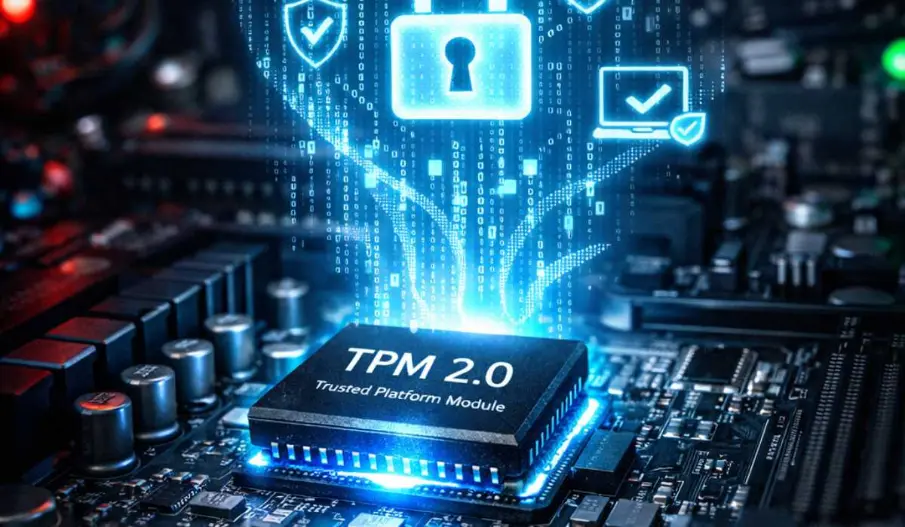
TPM (Trusted Platform Module) is a chip (quite tiny) on your motherboard that assists in securing encryption keys and personal information.
TPM 2.0 is needed to secure your system against malware and guarantee a secure boot environment with Windows 11.
Most PCs that are older do not have TPM or are disabled by default. It can be fixed by enabling it in the BIOS.
Understanding Secure Boot
Secure Boot will make sure that your computer loads only trusted software from the manufacturer. When it is disabled, Windows 11 might not install, even on powerful hardware.
Secure Boot is switched on in BIOS/UEFI. When turned on, your computer will be safer and compatible with Windows 11.
The reason why CPU Compatibility is Rigid
Just because your processor is quick does not necessarily mean it is on the list of supported processors in a Microsoft operating system.
Microsoft permits only some Intel, AMD, and Qualcomm processors to make sure they are stable and secure.
Older high-performance CPUs might not pass the upgrade test. It is important to verify your CPU model with that of Microsoft.
The purpose of BIOS/UEFI Updates
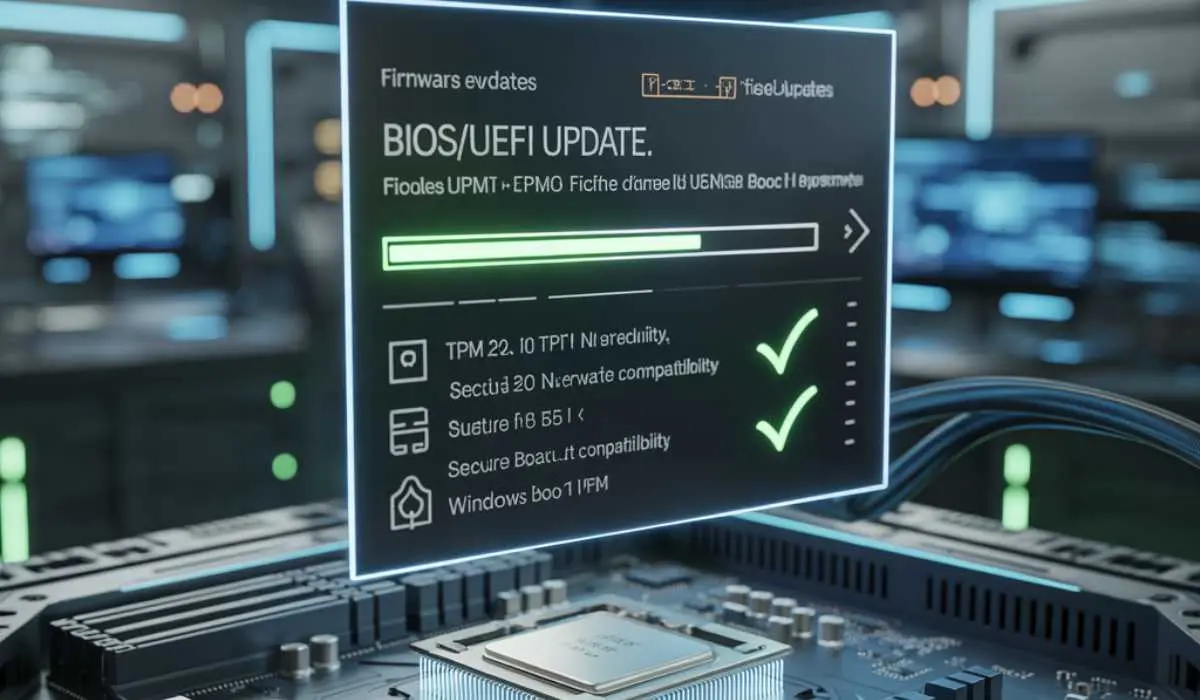
Outdated BIOS/UEFI firmware can make Windows incorrectly detect hardware features like TPM or Secure Boot. When you upgrade your firmware, you ensure that all the requirements of Windows 11 are noted accordingly.
The most recent update is on the support page of your manufacturer.
When to Take into Account a Clean Install
In case the problem cannot be fixed by enabling TPM, secure boot, updating the BIOS, and verifying the CPU, a clean installation can possibly resolve it.
Note: This deletes your data. Have it all ready before you jump. Clean installs may also be used to get around some checks but are not officially sanctioned.
Other Common Issues
Others receive the message as a result of storage or configuration issues, e.g.,
- Limited free space on the system drive.
- Operating Windows on a cloned or non-standard disk.
- The upgrade is being interfered with by legacy BIOS settings.
To repair them, one will have to check storage, make sure that at least 64 GB are free and make sure that your PC is in UEFI mode.
Step-by-Step Summary
To the majority of the users, the answer is straightforward:
- Go to Run PC Health Check to diagnose the precise problem.
- Ensuring TPM in BIOS/UEFI and Secure Boot.
- BIOS update when necessary.
- Check to confirm that your CPU is supported.
- Update firmware and check storage.
These steps will resolve most PCs without having to completely reinstall the computer again.
Should You Upgrade to Windows 11?
Before making changes, consider:
- Do you require Windows 11 capabilities, or is Windows 10 enough?
- Does your PC still get Windows 10 security patches?
- Do you feel at ease with BIOS settings or a clean install?
Although your PC may not be upgradeable at present, Windows 10 is still usable, though you will be required to upgrade it in the future, which will be necessary to securely upgrade and support software
Conclusion
The message “This PC does not meet Windows 11 system requirements” is not an obstacle. BIOS/UEFI settings, lack of TPM, and incompatible CPUs are the major causes of most issues.
The problem can be resolved by using the steps provided in this guide, which include compatibility checking, enabling TPM/Secure Boot, updating the BIOS, and checking the CPU.Although you may need a clean install or different hardware, knowing what you need allows you to act with certainty.