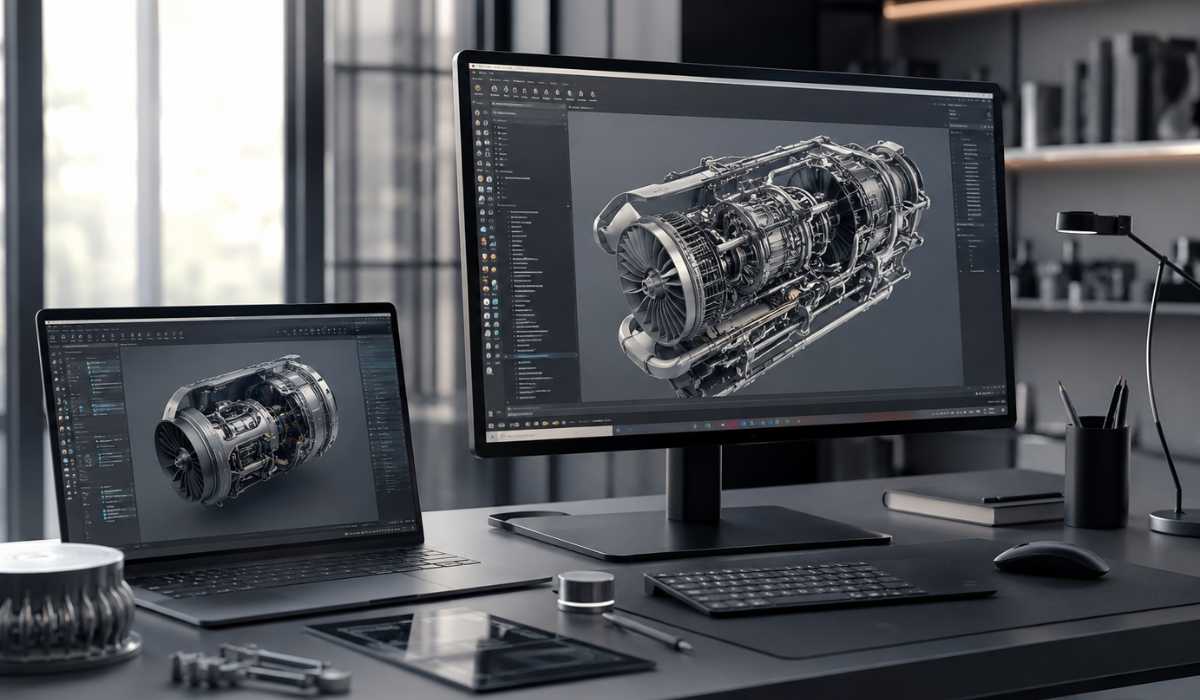
One of the most popular CAD, CAM, and 3D modeling programs available for engineers, students, designers, and manufacturers is Autodesk Fusion. The software integrates modeling, rendering, simulation, and manufacturing capabilities into a single platform that is powerful in all aspects. Given its ability to work with complex 3D tasks and cloud workflows, it is crucial to have the right computer hardware to ensure the smooth operation of Fusion 360.
A lot of users are installing software without looking at the necessary specifications. This may cause slow rendering, crashes, freezing, lagging, and poor viewing performance. It is crucial to understand the Fusion 360 system requirements to choose the appropriate laptop or computer for efficient and flawless functioning. Whether you’re a novice or an expert engineer, using the right tools will make you more productive and more enjoyable.
Fusion 360 System Requirements
Here’s a brief explanation of minimum and recommended requirements:
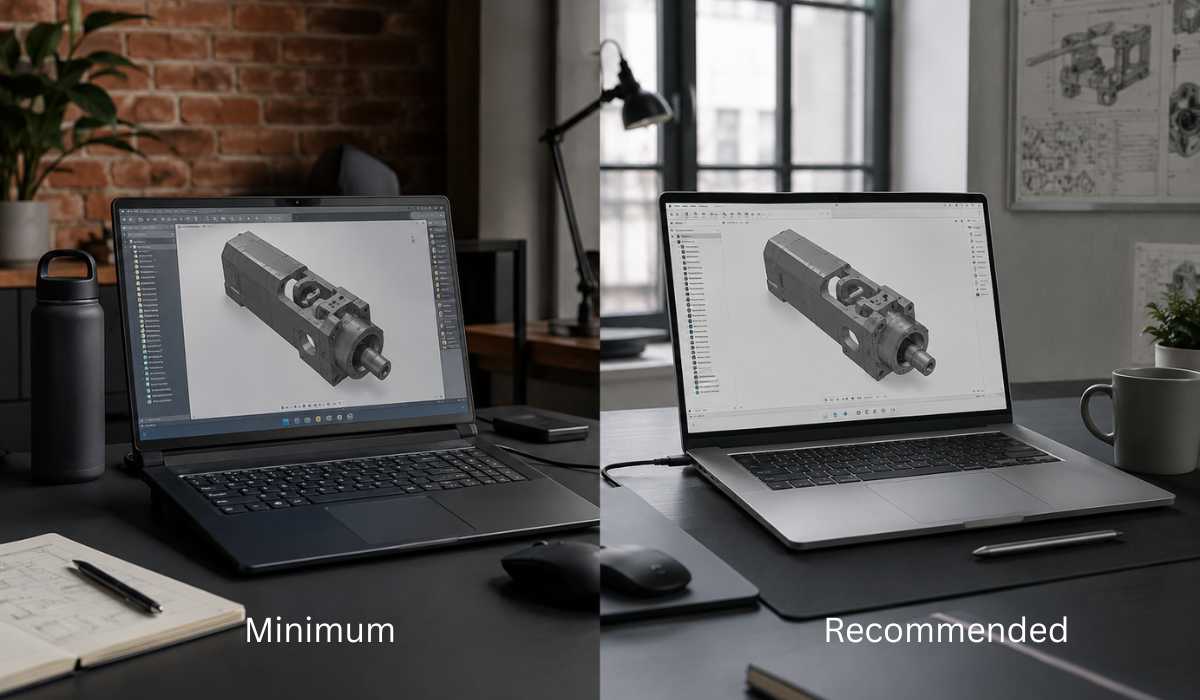
Fusion 360 Minimum System Requirements
The minimum requirements are appropriate for people who do simple 3D modelling and simple light projections.
| Component | Minimum Requirement |
|---|---|
| Operating System | Windows 10 or Windows 11 (64-bit) |
| Processor | 64-bit processor (4 cores) |
| RAM | 4 GB |
| Graphics Card | DirectX 11 compatible GPU |
| VRAM | 1 GB dedicated memory |
| Storage | 8 GB free space |
| Display Resolution | 1366 × 768 |
| Internet | Stable broadband connection |
Fusion 360 Recommended System Requirements
The recommended specs will give a smoother and more stable performance experience for professional workloads.
| Component | Recommended Requirement |
|---|---|
| Operating System | Windows 11 64-bit |
| Processor | Intel Core i7 or AMD Ryzen 7 (minimum) |
| RAM | 16 GB or higher |
| Graphics Card | NVIDIA RTX (or AMD Radeon dedicated GPU) |
| VRAM | 4 GB or higher |
| Storage | SSD with 10 GB free space |
| Display Resolution | 1920 × 1080 or higher |
| Internet | High-speed broadband connection |
Fusion 360 System Requirements for Mac users
If you are a Mac user, you can also make good use of Fusion 360 software, depending on the specifications of your device.
| Component | Mac Requirement |
|---|---|
| Operating System | macOS Monterey or later |
| Processor | Apple Silicon or Intel CPU |
| RAM | 8 GB minimum |
| Storage | Enough free SSD space for 10 GB |
| Graphics | Metal-capable GPU |
| Internet | Required |
Why Processor Performance Matters in Fusion 360
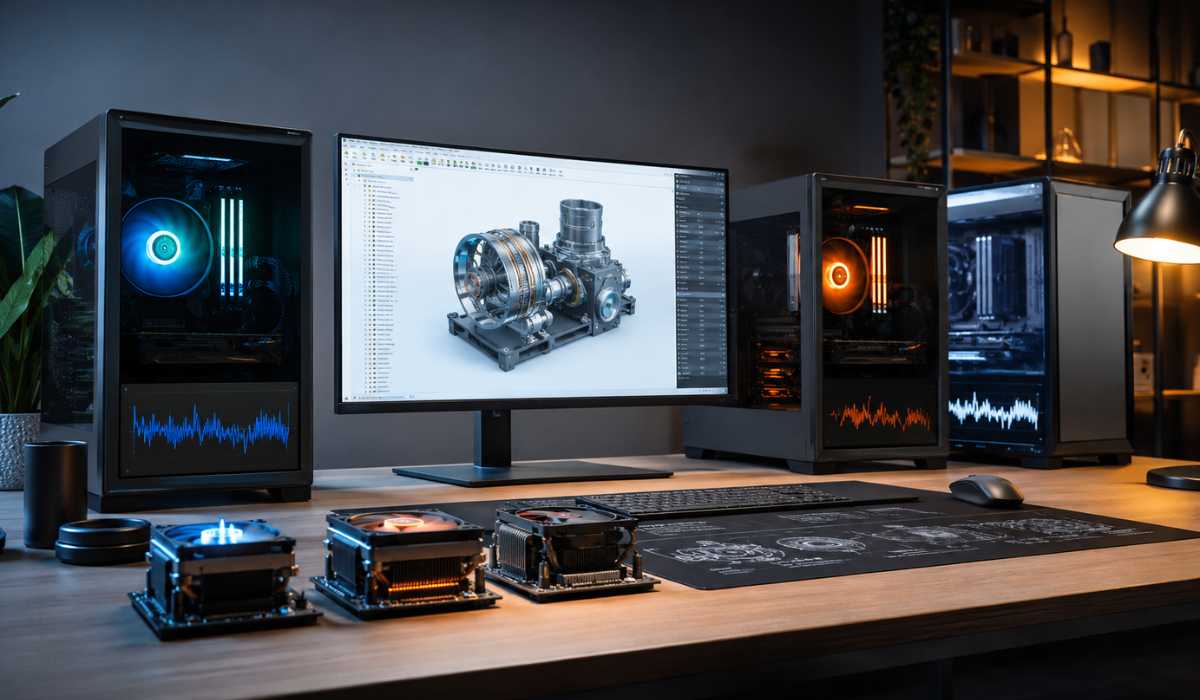
The processor is one of the key components of Fusion 360, as it is responsible for performing calculations, processing designs, conducting simulations, and tuning the responsiveness of the software.
Using a faster CPU can speed up workflow and minimize delays when working on complex models.
Intel Processors
Intel Core i5 and i7 processors are typically recommended for Fusion 360, as they are known for having high single-core capabilities. More clocks will lead to better modeling response time, mobility of the viewport, and handling efficiency of the projects.
AMD Ryzen Processors
AMD Ryzen processors offer very good multitasking capabilities and are a fine choice for CAD users!
Ryzen 5 and 7 CPUs are capable of handling rendering and design tasks without any hassle and are also budget-friendly platforms.
Workstation CPUs
Advanced engineering processing and companies’ tasks are addressed by professional workstation processors like Intel Xeon.
These CPUs are ideal for those who are engrossed in large assemblies, simulations, and intensive rendering projects on a regular basis.
RAM Requirements for Fusion 360
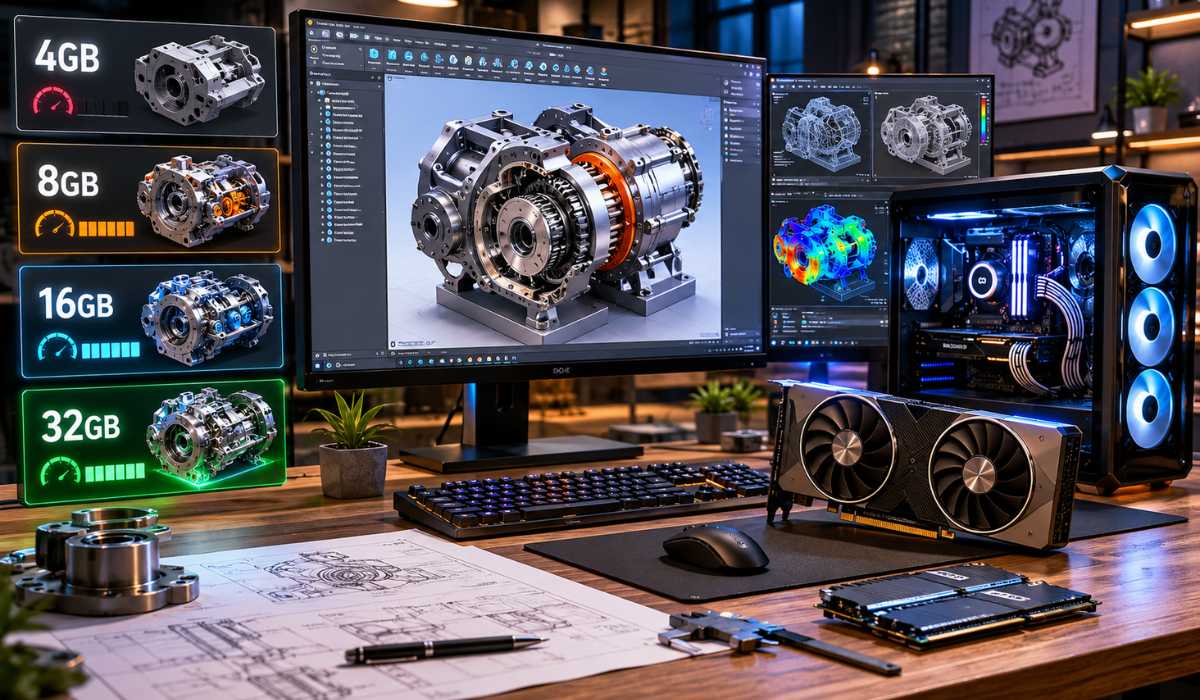
The stability of software and multitasking performance are significant aspects of RAM. Installing larger amounts of RAM will allow for smoother processing of larger projects and will minimize freezing during more complicated operations.
4 GB RAM
The minimum amount of RAM Fusion 360 requires is 4 GB, and this is only recommended for very basic work or for beginner projects.
Slow performance can be experienced by users when dealing with larger designs or multitasking with other applications.
8 GB RAM
For students and casual users who work with medium-sized projects, 8 GB RAM is a good option. It offers unclimaxed multi-tasking and improved overall software responsiveness (over the minimum requirement).
16 GB RAM
For professional users, 16 GB RAM is recommended to enhance the performance when rendering, simulations, and large assemblies are performed.
It also aids in ensuring a smooth workflow when working with multiple design applications simultaneously.
32 GB RAM or More
This 32 GB RAM is perfect for the most advanced engineers, designers, and manufacturing professionals, as they work on complex projects on a regular basis.
Larger RAMs can therefore manage more complicated data without causing the software to lag or crash.
Graphics Card Requirements in Fusion 360
- A graphics card is recommended for Autodesk Fusion to get better performance, but an integrated graphics card is suitable only for basic work.
- Integrated graphics are capable of running the software, but can result in some lag when dealing with complex 3D models and large assemblies.
- Dedicated GPUs offer less lag, improved visualization and faster render speeds.
- Powerful graphics cards minimize delays and increase stability when performing intensive CAD and simulation activities.
- NVIDIA RTX, NVIDIA Quadro, AMD Radeon RX, and AMD Radeon Pro series are all recommended GPUs.
SSD vs HDD for Fusion 360
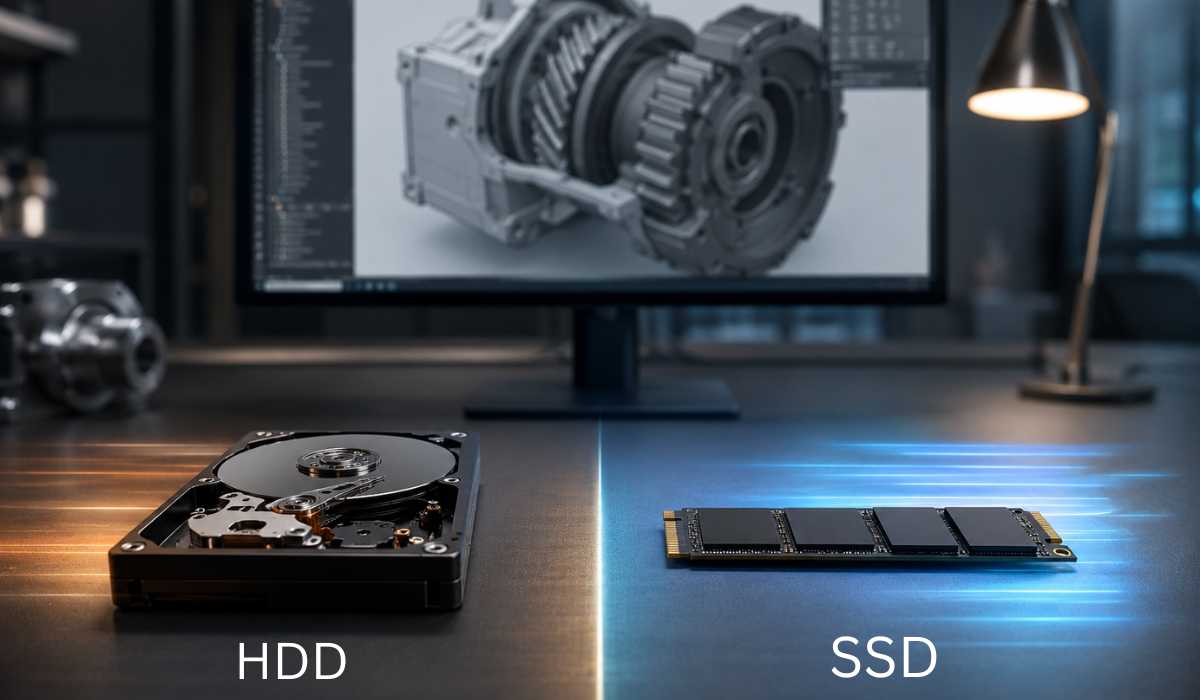
The type of storage information used can significantly impact the performance and responsiveness of your system. The speed of SSDs is much higher than that of conventional hard drives, and it will have a notable effect on the software performance as well.
| Storage Type | Performance |
|---|---|
| HDD | Slower loading and saving |
| SSD | Faster startup and quicker file reading/writing |
Why SSD is Better
An SSD will help to speed up project loading times, software start-up, and responses during design workflows.
NVMe SSDs provide significantly better performance for heavy-duty users who frequently deal with large files.
Internet Requirements for Fusion 360

The internet connection is crucial for Fusion 360, as many of its capabilities and features rely on the cloud. A stable internet connection helps to keep everything synced, updated, and collaborating smoothly.
Cloud Saving
Projects are automatically saved to the cloud in Fusion 360, giving users access to the files on various devices.
This also prevents data loss due to hardware problems in the project.
Collaboration Features
The software is team-oriented, enabling various users to collaborate online on projects. A fast internet connection makes collaboration easier and faster, as well as syncing files.
Software Updates
Fusion 360 is updated regularly to enhance features, stability and security. A connection to the internet is necessary to download updates without interruptions.
Best laptops for Fusion 360
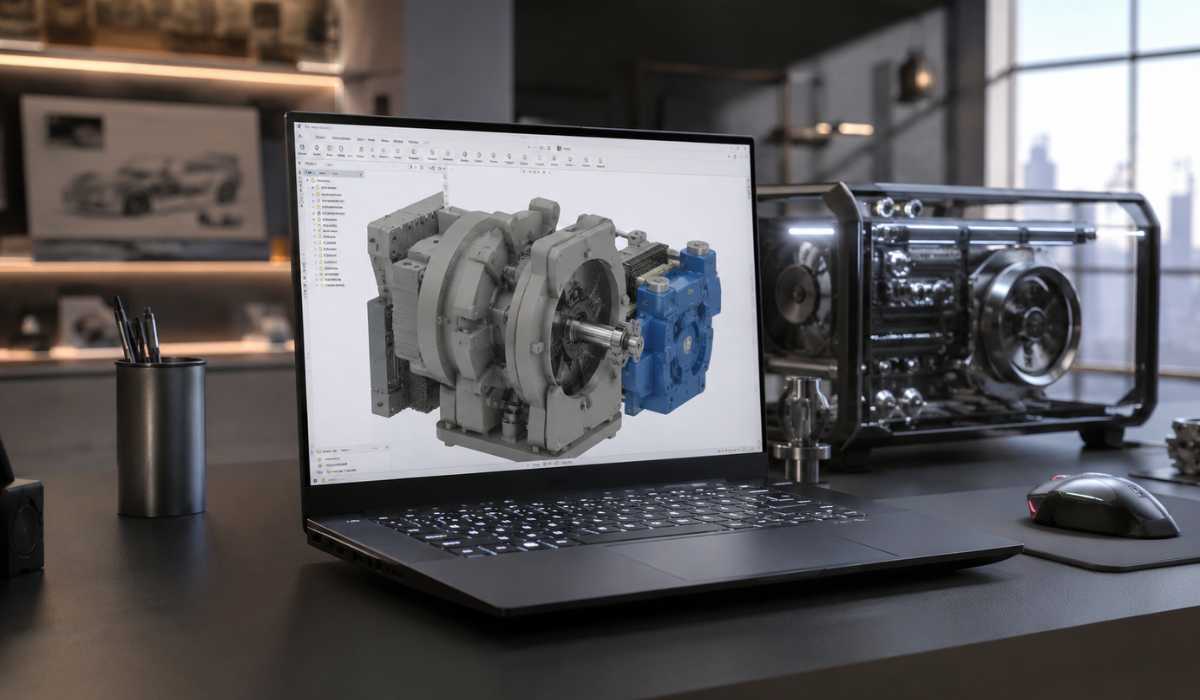
When it comes to choosing the right laptop, it’s crucial for users who value portability and robust performance.
The ideal Fusion 360 laptop will feature a high-speed CPU, adequate RAM, SSD storage, and dedicated graphics.
Gaming Laptops
Gaming laptops are great for Fusion 360 as they come with powerful CPUs and GPUs. They also offer improved cooling systems, ensuring stable performance during extended design sessions.
Creator Laptops
Laptops that are geared towards content creation, rendering, and design applications are called creator laptops.
Tpically, these laptops come with good screens, solid performance, and a lightweight design that’s ideal for professionals.
Workstation Laptops
Workstation Laptops are designed for engineering and CAD software. They offer reliable drivers, verified hardware, and robust performance to meet the demands of professional design work.
Best desktop PCs for Fusion 360
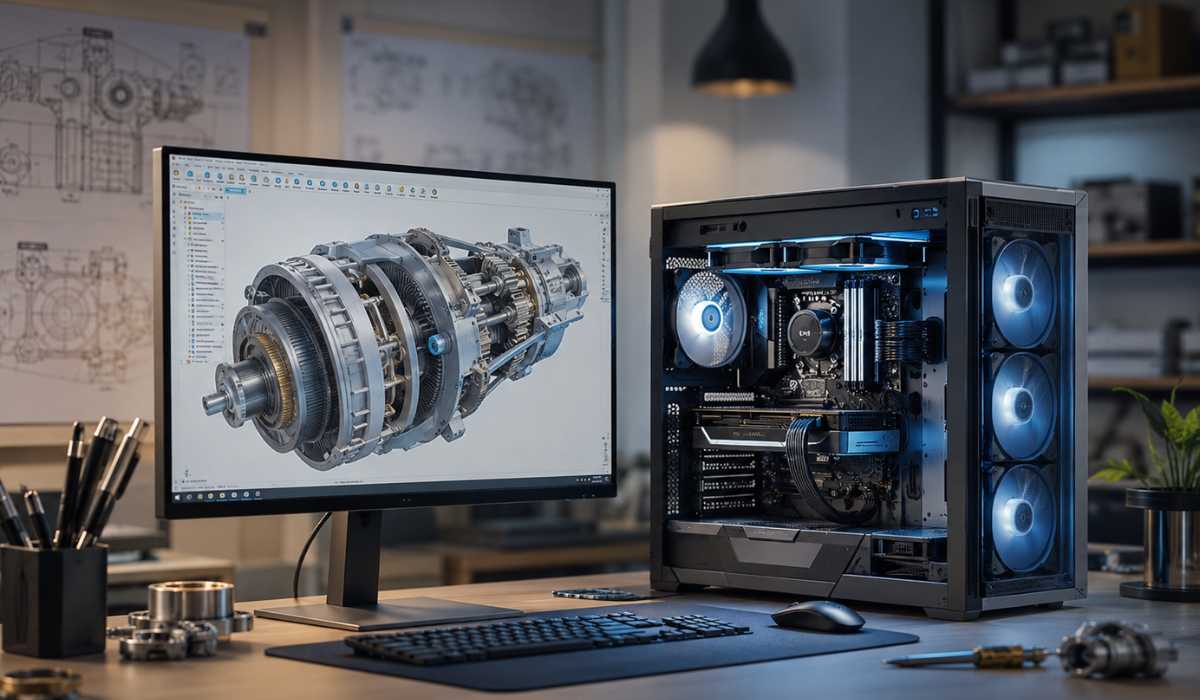
Some CAD users prefer desktop computers because of the greater cooling, upgrade options, and performance over most laptops for professional CAD applications.
Better Cooling Performance
When rendering and simulations, desktop computers often have a much larger cooling system, which means they will keep a cooler temperature. This will ensure better air flow and reduce thermal throttling in heavy workloads.
Easy Hardware Upgrades
It is easier to upgrade memory, storage, graphics cards and processors in desktop PCs. This flexibility makes desktops an affordable solution for professional users in the long run.
Higher Overall Performance
Compared to laptop components, desktop hardware will offer greater performance for the same price. This gives desktops the perfect edge when it comes to advanced engineering, rendering, and manufacturing projects.
Is Fusion 360 running on a low-end PC capable?
- Autodesk Fusion can be used on a low-end system as long as the minimum requirements are met, but it will still be limited in heavy tasks.
- While small projects may be okay, large assemblies can lead to lag and slow down system responsiveness.
- If you have a low-end PC, you may find that it fails to handle detailed 3D models, has problems with rendering and multitasking.
- Basic systems will work for the beginning user, but upgrading hardware is essential for advanced CAD applications.
How to Improve Fusion 360 Performance
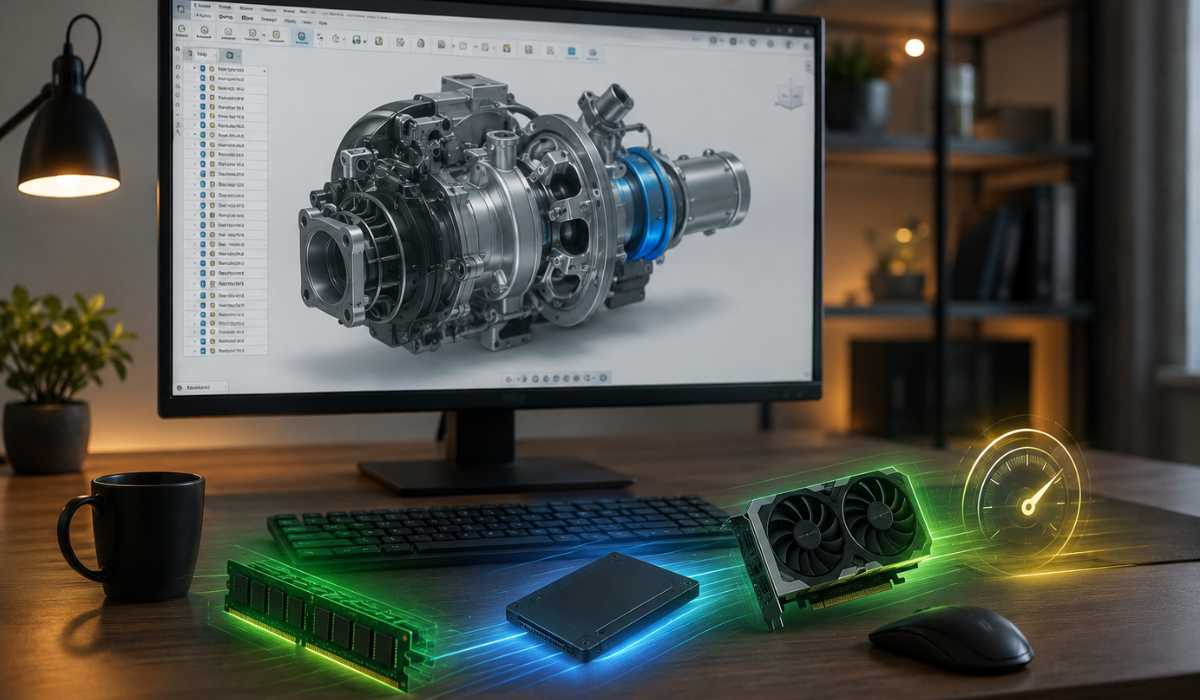
To optimize Fusion 360 performance, users can fine-tune their hardware and system settings. Workflow can greatly benefit from simple enhancements and modifications.
Upgrade RAM
More RAM means more efficient processing of larger files and multiple applications.
This upgrade can make a huge difference in the amount of time spent freezing and the ability to do multiple tasks.
Use an SSD
Using Fusion 360 on an SSD drive will speed up startup time, file opening times, and responsiveness. One of the best ways to get a system performing better is to upgrade its SSD.
Update Graphics Drivers
New graphics drivers enhance the compatibility, stability, and rendering quality of the GPUs. Driver updates also resolve bugs and visual problems of CAD applications.
Close Background Applications
Too many applications running in the background can take up necessary RAM and CPU resources. Use this to close any programs that are not necessary; this will cause Fusion 360 to run faster.
Lower Visual Settings
Lowering graphics performance can help the weaker system to operate without losing performance in tasks such as modelling and rendering. This can be helpful for the entry-level GPUs.
Common Fusion 360 Performance Problems
- Autodesk Fusion’s recommended requirements are not met by systems that may experience performance challenges that impact speed and productivity in daily use.
- Software failures may happen on computer systems that have limited RAM or are running on old software, particularly during rendering and opening large and complex assemblies.
- During projects, freezing is often experienced on weak processors or on limited memory, especially when working on detailed 3D models or simulations.
- Slow rendering occurs when the graphics processing unit (GPU) or central processing unit (CPU) is not sufficiently powerful, resulting in slow rendering speeds and decreased productivity.
- When the graphics hardware gets under strain, it creates a lag during 3D design rotation, enlargements and movement, the lag is called viewport lag.
Fusion 360 Requirements for Students
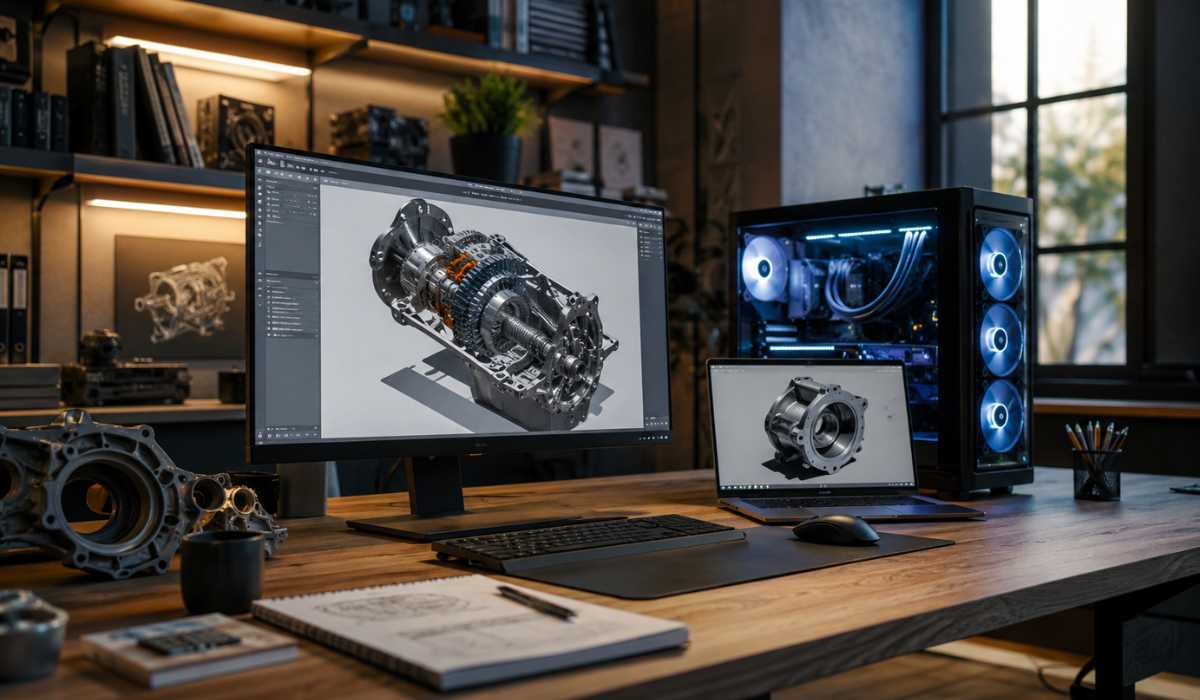
Typically, students will have smaller projects and, therefore, won’t always require high-end pieces of hardware. For educational purposes and CAD learning, a mid-range laptop is sufficient.
Recommended Student Setup
| Component | Suggested Specification |
|---|---|
| CPU | Intel Core i5 or Ryzen 5 |
| RAM | 8 GB |
| Storage | SSD |
| GPU | Entry-level NVIDIA GPU (GTX or RTX) |
| Display | Full HD |
Why is middle-range hardware sufficient?
Student projects are typically less rigorous than professional engineering projects, so that mid-range systems can easily manage them. Balanced hardware also enables students to save on their investment, without sacrificing performance.
Fusion 360 for Professional Engineers
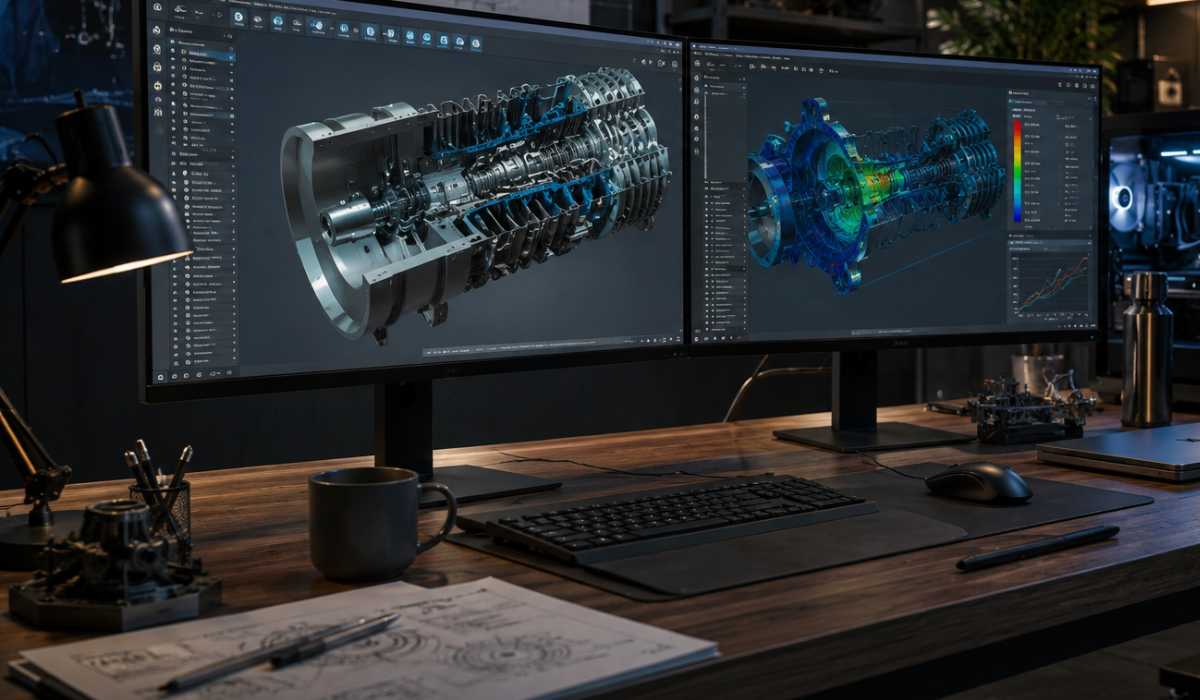
Professional engineers typically produce more intricate models, manufacturing projects, and simulations, which need more powerful hardware. High-performance systems contribute to the speed and reliability of the workflow.
Recommended Professional Setup
| Component | Recommended |
|---|---|
| CPU | Intel Core i7/i9 or Ryzen 7/9 processors |
| RAM | 32 GB |
| GPU | NVIDIA RTX or Quadro |
| Storage | NVMe SSD |
| Monitor | 1440p or 4K display |
Importance of professional hardware
High-quality hardware enhances multi-tasking, simulation and rendering quality. It also reduces crashes and delays while working on complex engineering projects.
Is Fusion 360 heavy software?
The complexity of projects and workflow needs determines whether Fusion 360 is a medium or heavy-duty software. Computer systems will work well for basic projects, and stronger systems are required for advanced manufacturing and simulation projects.
While some traditional CAD software programs are more focused on their features, Fusion 360 is efficient and offers a good balance of features and performance.
New systems featuring separate graphics cards and solid-state drives typically perform the software fairly well.
Conclusion
Autodesk Fusion is a high-end product for CAD, engineering, manufacturing and 3D design. Users can choose the right hardware to guarantee the Fusion 360 system operates steadily and smoothly by being aware of the system requirements.
For beginners and students, mid-range systems with 8 GB RAM and SSD storage will be enough, but for professional engineers, they need more powerful processors, dedicated GPUs, and higher RAM capacity to handle heavy workloads.
The selection of the correct computer will help to increase productivity, minimize lag, and enhance overall experience during work on Fusion 360 projects.