ArcGIS Pro is a robust GIS (Geographic Information System) program created by Esri, which is used to map, perform spatial analysis, 3D visualization, and manage large geospatial data.
It is extensively utilized in urban planning, environmental studies, surveying, and research areas. Due to its work with heavy maps, satellite images, and complicated spatial operations, an appropriate system is necessary to provide stable and smooth work.
ArcGIS Pro System Requirements
In order to operate ArcGIS Pro effectively, your computer must be sizable to meet the particular hardware specifications based on the extent of GIS activity you wish to engage in.
Minimum System Requirements (Basic GIS Work)
| Component | Requirement |
|---|---|
| Operating System | Windows 10 (64-bit) or Windows 11 |
| Processor (CPU) | Intel Core i3 (8th Gen or higher) / AMD Ryzen 3 |
| RAM | 8 GB |
| Graphics Card (GPU) | 1–2 GB VRAM (DirectX 11 compatible) |
| Storage | 35 GB available (SSD suggested) |
| Display | 1920 × 1080 (Full HD) |
Such an arrangement is only appropriate for basic GIS tasks like simple mapping, viewing spatial data, and dealing with small datasets.
It is not efficient at large-scale analysis, as well as intricate 3D visualization.
Recommended System Requirements (Smooth GIS Performance)
| Component | Requirement |
|---|---|
| Operating System | Windows 11 (64-bit) |
| Processor (CPU) | Intel Core i5 / i7 (10th Gen or newer) / AMD Ryzen 5 / 7 |
| RAM | 16 GB (32 GB suggested for heavy projects) |
| Graphics Card (GPU) | 4–8 GB VRAM (GTX 1660 / RTX 3060 or higher) |
| Storage | NVMe SSD (512 GB or more recommended) |
| Display | 1920 × 1080 or higher (2K preferred) |
This setup is suitable for students and GIS practitioners engaged in moderate-level datasets, spatial analysis, and mapping projects.
It offers the ease of performance, quicker processing, and a consistent workflow.
High-End System Requirements (Professional GIS & 3D Analysis)
| Component | Requirement |
|---|---|
| Operating System | Windows 11 Pro (64-bit) |
| Processor (CPU) | Intel Core i7 / i9 (12th Gen or newer) / AMD Ryzen 7 / 9 |
| RAM | 32 GB to 64 GB |
| Graphics Card (GPU) | 8–16 GB VRAM (NVIDIA RTX 4070 / 4080 or higher) |
| Storage | 1 TB NVMe SSD + additional storage drive |
| Display | 2K or 4K monitor with high color accuracy |
This is configured to serve advanced GIS professionals who deal with large volumes of data, 3D modeling, satellite imagery, and intricate spatial analysis.
It provides a smooth rendering and rapid processing even with a heavy workload.
Why System Requirements Matter to ArcGIS Pro
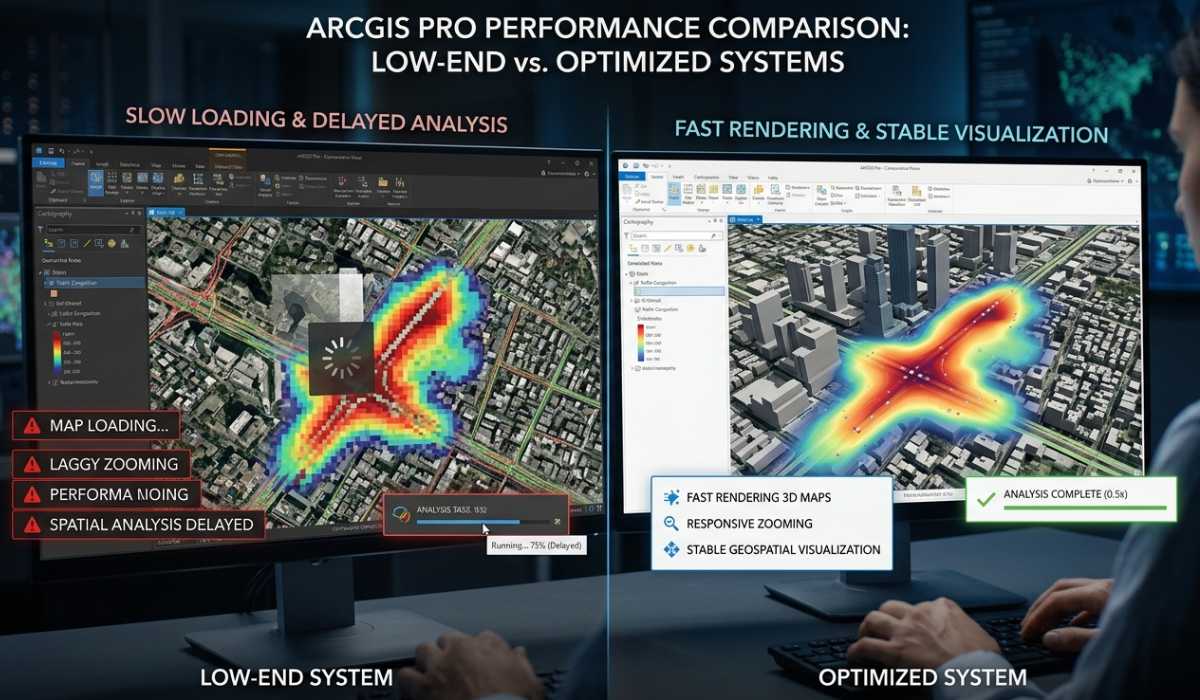
ArcGIS Pro is very resource-intensive, and it is used to process large geospatial data, complicated maps, and 3D visualizations.
Performance Problems on Low-End Systems
ArcGIS Pro can also be slow when zooming, loading maps, or performing spatial analysis on low-end systems.
Bulky data can be more time-consuming to work with, and the software may slow down or crash during intensive operations.
Smooth Workflow on Optimized Systems
ArcGIS Pro is stable on a well-configured system, and it has a fast render speed, analysis results are quick, and the 3D visualization is stable.
This greatly enhances productivity and minimizes delays in the GIS workflow.
Processor (CPU) Requirements
In ArcGIS Pro, the CPU would process geoprocessing, spatial, and data analysis operations.
A contemporary multi-core processor like Intel Core i7 or AMD Ryzen 7 enhances the performance of the processor due to the high distribution of the workloads.
Increased clock speeds also contribute to the quicker execution of GIS operations and less stuttering multitasking.
Graphics Card (GPU) Requirements

The GPU is significant in the process of map rendering, 3D scenes, and the visualization of space.
Significance of GPU Acceleration
GPU acceleration can be used to increase the rendering speed and performance in cases of large maps and 3D environments.
It eliminates lag and offers a more responsive and interactive experience with geospatial data.
NVIDIA vs Integrated Graphics
Specialized graphics cards such as NVIDIA RTX or AMD Radeon are significantly more effective in performance than integrated graphics. They offer greater VRAM, which would be critical in processing large GIS projects and complex datasets.
RAM Requirements and Importance

RAM defines the degree of smoothness that ArcGIS Pro will be able to operate with numerous datasets and layers at the same time.
8 GB RAM Simple Usage
Only appropriate in simple mapping, learning use, and small datasets.
16 GB RAM Typical GIS Work
It is suitable for students and professionals with moderate GIS projects and spatial analysis.
32 GB or More Advanced GIS Work
Needed with large datasets, 3D visualization, and sophisticated spatial analysis, with no performance problems.
Storage Requirement (SSD vs HDD)
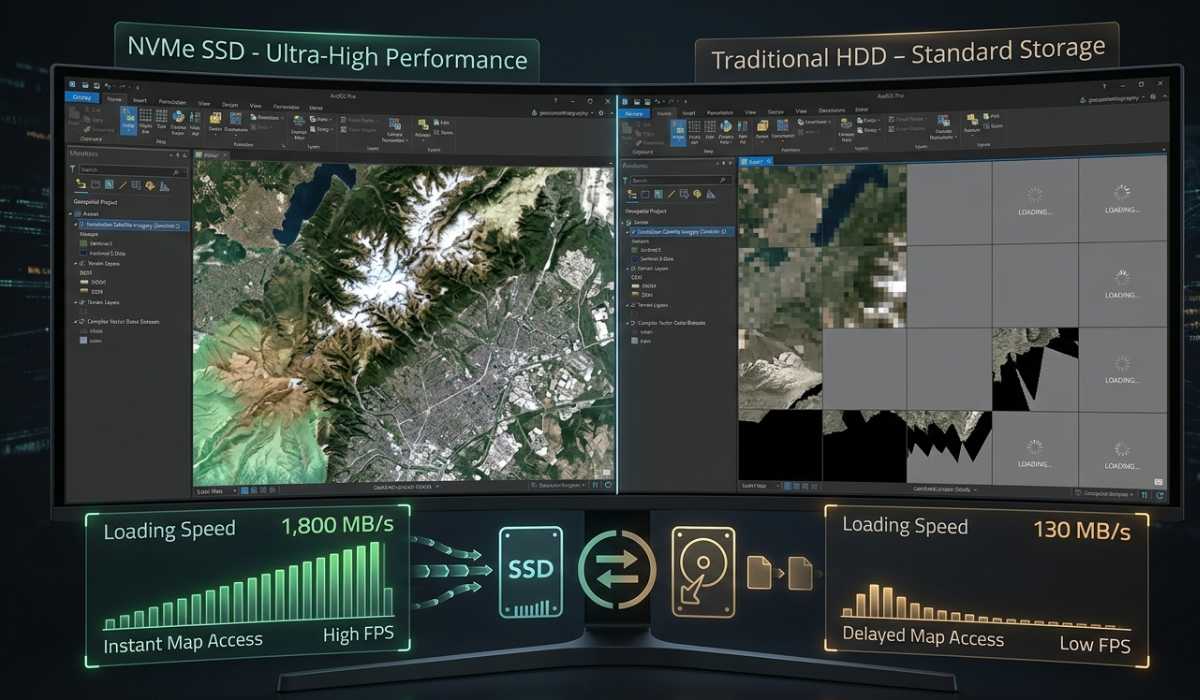
The speed of storage has a direct influence on the speed of ArcGIS Pro loading projects and processing data.
Advantages of SSD storage
SSDs have very high read/write speeds in comparison with HDDs. This leads to faster loading times, a smoother performance, and faster processing of GIS data.
Suggested Storing System
An NVMe SSD is suggested to be used as the main storage of ArcGIS Pro and projects in operation, and secondary storage (HDD or similar) could be used as the storage of backups and archives.
Display Prerequisites to GIS Work
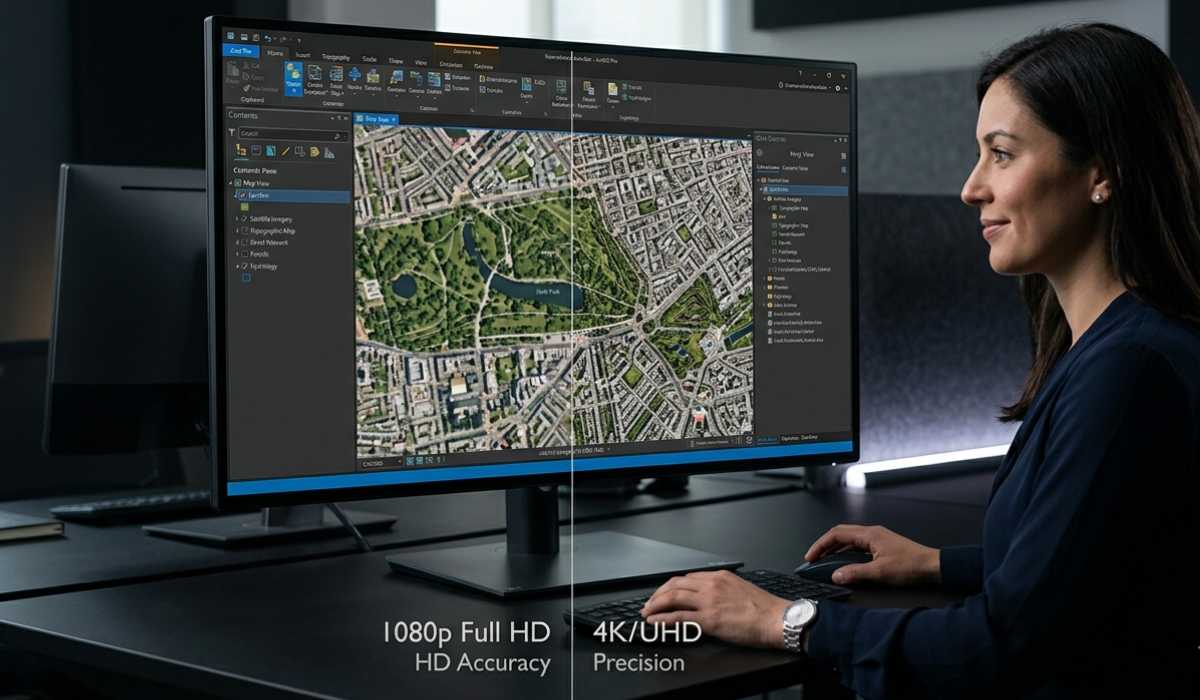
Quality display is critical in proper mapping and spatial analysis.
Resolution Importance
The minimum is Full HD, but the 2K or 4K monitors are suggested as providing clear and in-depth GIS visualization.
Color Accuracy and Clarity
Precise color representation is useful in enhancing the interpretation of satellite images and spatial datasets.
Laptop vs Desktop ArcGIS Pro

Laptops are mobile and can be used in the field by students and individuals who require mobility.
Desktops are also better in terms of performance, cooling, and upgrades, which makes them ideal for heavy workloads of GIS work as well as long-term professional usage.
Optimization Tips to ensure a better performance

- Allow hardware acceleration to make rendering smoother.
- Fast loading and processing are done using SSD storage.
- Stability: GPU drivers are kept up-to-date.
- Such optimizations make systems, even in the mid-range, perform better.
More Performance Advice
- Shut down superfluous background programs prior to launching ArcGIS Pro.
- When using big datasets, simplify map layers.
- Do not do several heavy GIS projects at a time.
- The minor changes can be used to enhance the speed and responsiveness of the system.
Problematic Experiences with Low-End Systems

Slow rendering, laggy navigation, and slow analysis results are common problems with low-end systems due to a weak CPU, inadequate RAM, or a lack of dedicated graphics cards. A hardware upgrade is a significant enhancement of the hardware performance and stability.
Final Thoughts
ArcGIS Pro is an effective GIS program that needs a well-balanced system to run smoothly. Although it may be able to run on simple hardware, professional GIS work requires more powerful specifications to run efficiently and provide visualization.
To summarize, minimum systems will be used in learning, recommended setups will be used in professionals, and high-end systems will be needed in advanced GIS analysis and 3D mapping. The appropriate configuration will make sure that workflows are faster, performance is less problematic, and productivity gets better.