Windows 11 is the latest operating system developed by Microsoft that aims to provide the user with a quicker, more organized, and safer experience. It enhances gaming, multitasking, and performance in general more than Windows 10. One of the most crucial things before installing it is, however, the system requirements.
The inability of some of their PCs to run Windows 11, despite the smooth running of Windows 10, confuses many users. This is due to one simple reason: Windows 11 is designed to run on only modern hardware.
What are the system requirements?
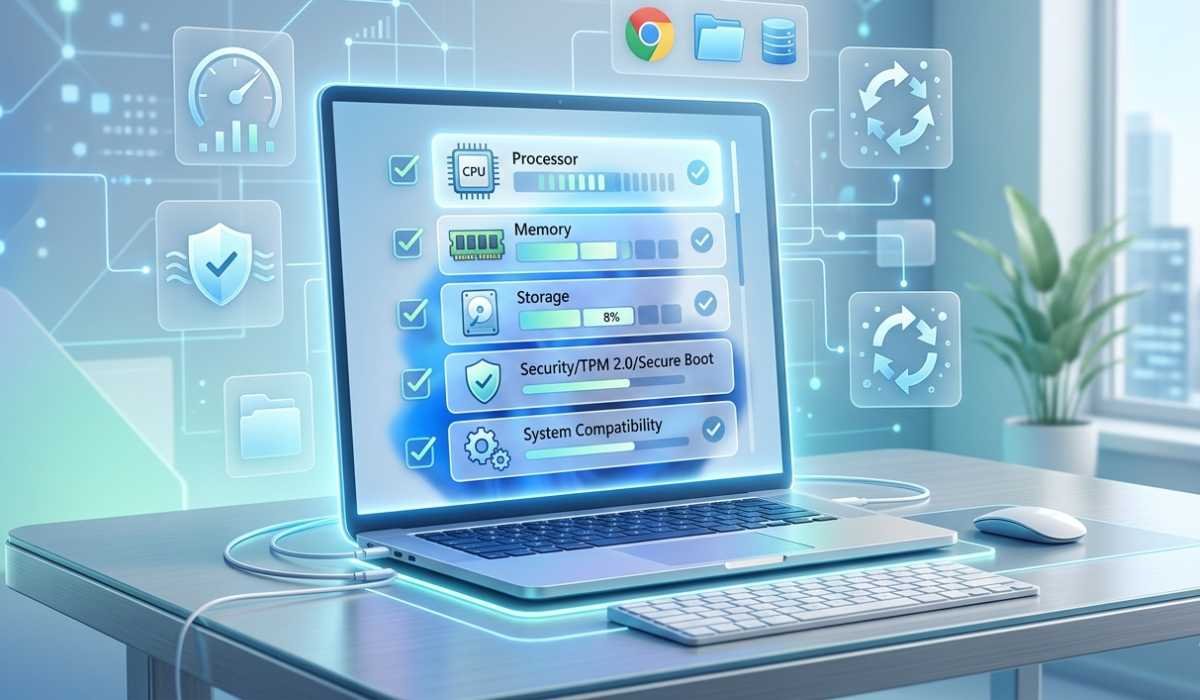
System requirements are the minimum and recommended hardware requirements required to run a computer with the software.
To Windows 11, the following requirements are guaranteed:
- Constant performance without interruptions.
- Strong security protection
- Ability to work with current apps and games.
- Long-term updates and support.
Windows 11 might not install or perform well when it is not installed in a PC that meets these requirements.
Windows 11 Minimal System Requirements
These are the minimum specifications that your PC should have in order to install Windows 11:
| Component | Requirement |
|---|---|
| Processor (CPU) | 1 GHz+, 2 cores, 64-bit, modern CPU |
| RAM | Minimum 4 GB, 8 GB recommended |
| Storage | Minimum 64 GB, SSD preferred |
| System Firmware | UEFI with Secure Boot |
| TPM | Version 2.0 required |
| Graphics Card (GPU) | DirectX 12 compatible, WDDM 2.0 |
| Display | 9-inch minimum, 720p HD |
| Internet & Account | Internet required, Microsoft account |
Recommended System Requirements
Minimum requirements enable installation, but recommended specs guarantee a smooth experience.
| Component | Requirement |
|---|---|
| RAM | 8 GB RAM or more |
| Storage | SSD storage instead of HDD |
| CPU | Intel 8th Gen / Ryzen 3000 or higher |
| Graphics Card | Specialized gaming or design card |
| Operating System Note | Windows 11 is fast, stable and responsive with these specs |
What TPM 2.0 Is and Why It Matters?
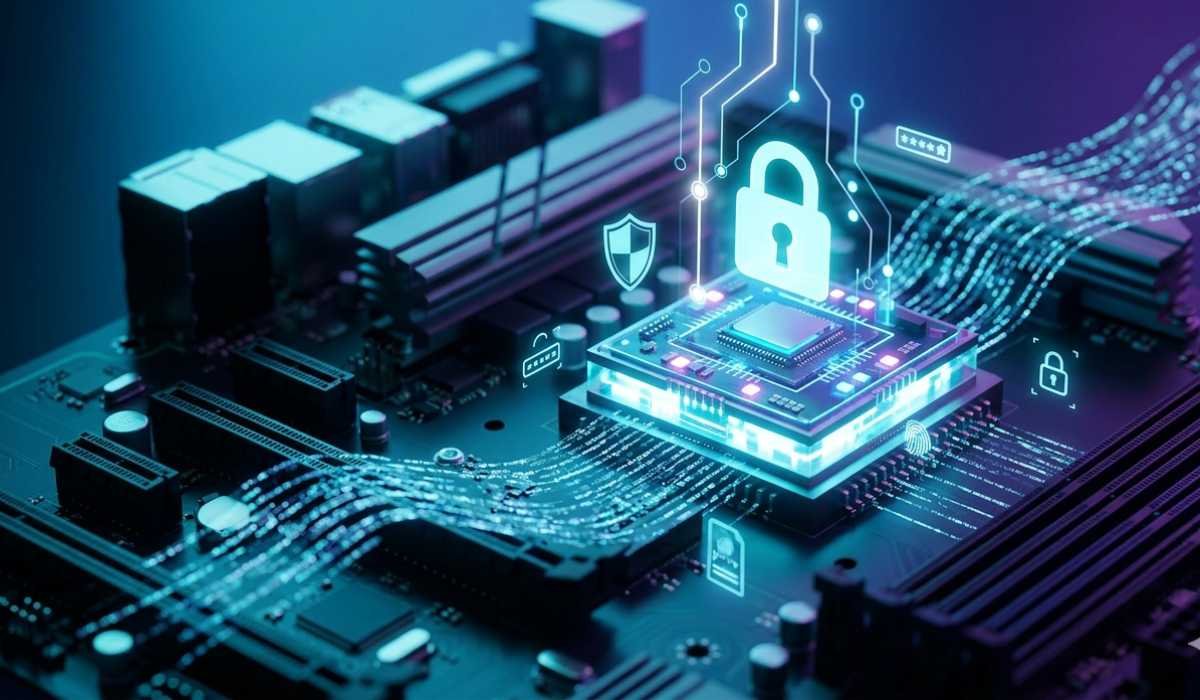
TPM (Trusted Platform Module) is a tiny security chip installed on your motherboard.
It helps in:
- Encrypting sensitive data
- Protecting passwords
- Preventing unauthorized access
- Obtaining the system boot procedure.
Windows 11 can not be officially installed without TPM 2.0.
Older PCs often have TPM disabled in BIOS, and thus users often assume that their PC cannot support it, although it may.
Checking Windows 11 Compatibility
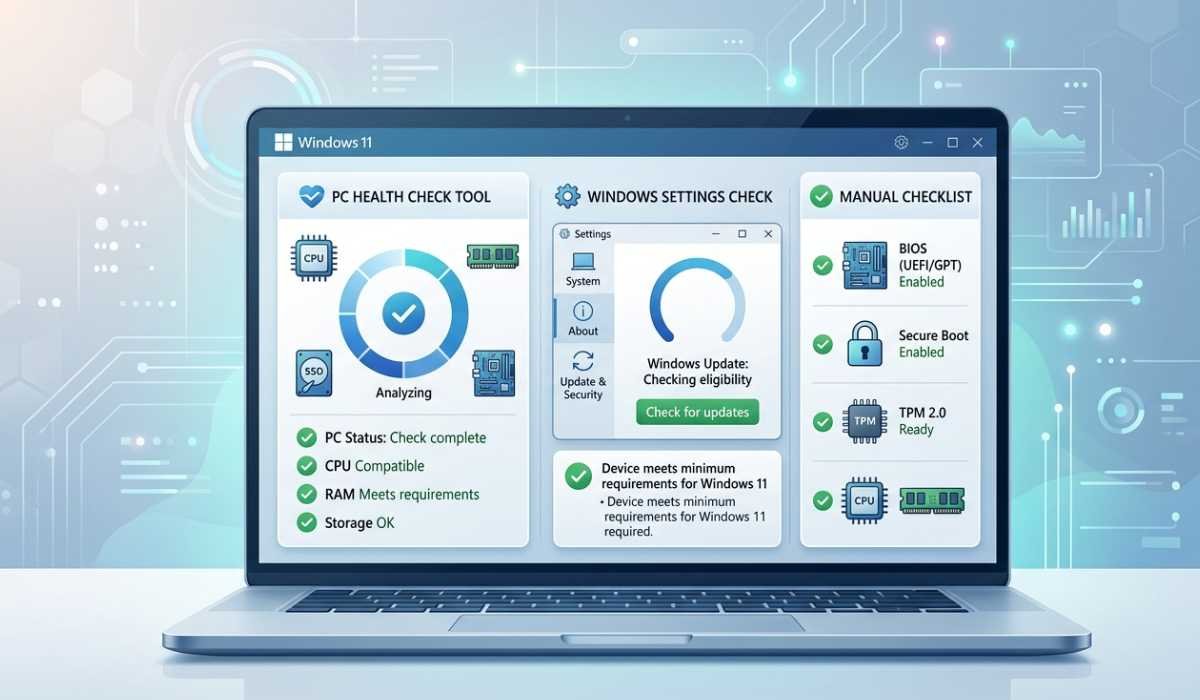
There are a few simple ways of checking your PC:
1.PC Health Check Tool
A PC Health Check is a free tool offered by Microsoft. It will inform you immediately whether your system is compatible with Windows 11 or not.
2. Windows Settings
Go to:
Settings > Windows update > Update & security > Windows update.
It will indicate eligibility to upgrade.
3. Manual Check
Check these manually:
- CPU generation
- RAM size
- Storage availability
- TPM status in BIOS
- Secure Boot status
Typical Failures of Windows 11 to install
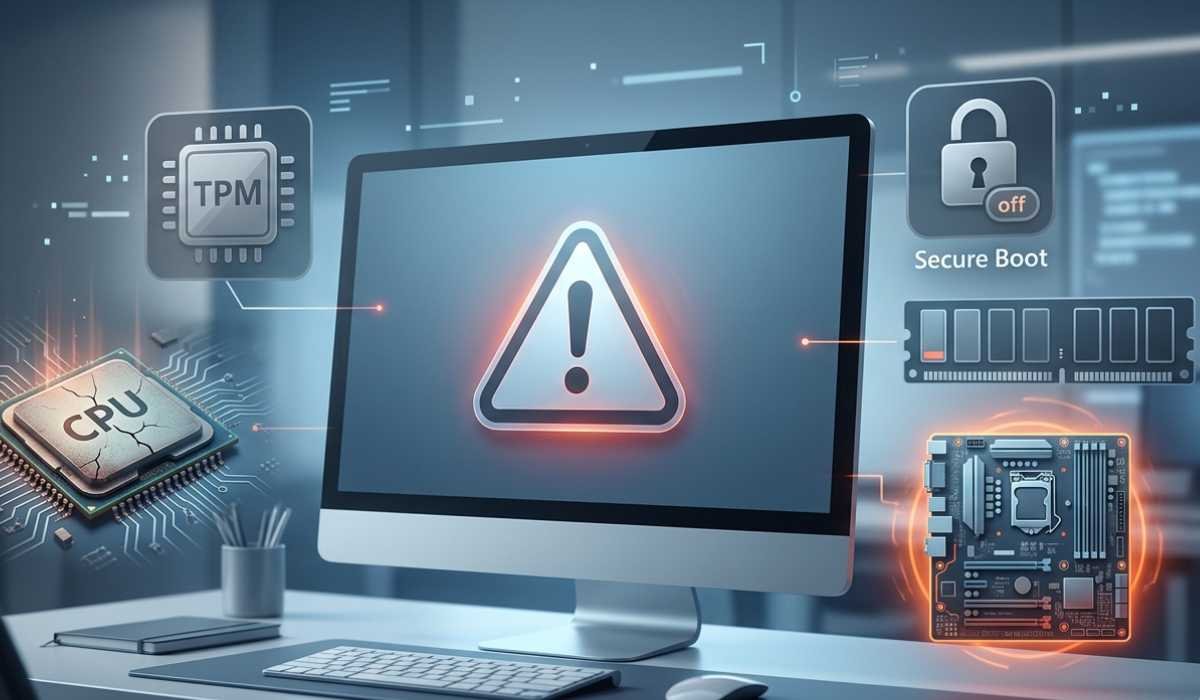
Lots of users have trouble during the upgrade. The most typical reasons are:
Old Processor
Windows 11 will not support a CPU that is too old.
TPM 2.0 Disabled or Missing
Even if your PC has TPM, it may be turned off in the BIOS.
Secure Boot Disabled
Secure Boot should be turned on to install.
Low RAM or Storage
Installation will be blocked by less than 4 GB RAM or 64 GB storage.
Unsupported Motherboard
Certain older motherboards are incapable of complying with current security standards.
Install Windows 11 on an incompatible PC?
Yes, technically, it can be done through unofficial means. However, it is NOT recommended.
Risks include:
- No news releases by Microsoft.
- Security vulnerabilities
- Performance issues
- Possible system instability
That way, when you have an unsupported PC, a hardware upgrade is a more suitable solution.
Windows 10 vs Windows 11 Requirements
| Feature | Comparison |
|---|---|
| CPU Support | Windows 10: Older CPUs allowed | Windows 11: Modern CPUs only |
| TPM Requirement | Windows 10: Not required | Windows 11: TPM 2.0 required |
| Security | Windows 10: Basic | Windows 11: Advanced |
| UI Design | Windows 10: Classic | Windows 11: Modern & centered |
| Gaming | Windows 10: Standard | Windows 11: Enhanced performance |
Advantages of satisfying Windows 11 Requirements

Provided that your PC satisfies the requirements, you can enjoy a great number of benefits:
Faster Performance
Applications load faster, and the operating system is more responsive.
Better Security
State-of-the-art security ensures the privacy of your information.
Improved Gaming
Stability in FPS and new gaming capabilities.
Modern Design
Clean interface, focused Start Menu, and clean animations.
Long-Term Support
Windows 11 will be supported by Microsoft for a long period of time.
Tips to Upgrade Your PC for Windows 11
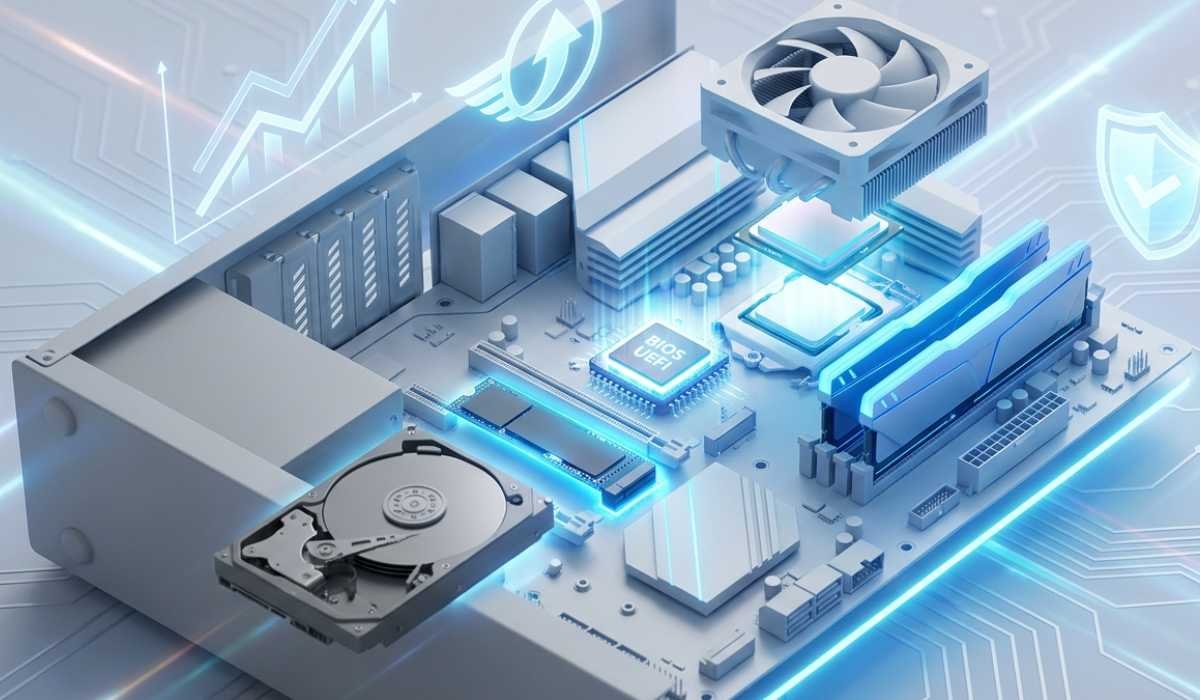
You can upgrade your PC rather than purchase a new PC, provided that it is not incompatible.
Upgrade RAM
Upgrade to 8 GB or 16 GB to enhance performance.
Switch to SSD
SSD will enhance the boot time and system speed significantly.
Update BIOS
In some cases, it is sufficient to turn on TPM and Secure Boot.
Upgrade CPU/Motherboard
In case of older systems, this might be required.
Windows 11: Is It Worth It?
Yes, Windows 11 is worth buying, provided that you have a compatible system.
It works well, especially in:
- Gamers
- Students
- Office users
- Content creators
Nevertheless, you still may install Windows 10 even when your PC is very old, until you upgrade your hardware.
Final Thoughts
The requirements of Windows 11 are much higher than in the past, but there is a purpose behind this: improved security, increased speed, and compatibility in the future.
Always ensure that you check your system before upgrading. Provided that your PC has the requirements, you will have a modern and seamless experience in computing.
Otherwise, to realize the maximum of Windows 11, it can be upgraded by adding hardware such as RAM, an SSD, or a CPU.