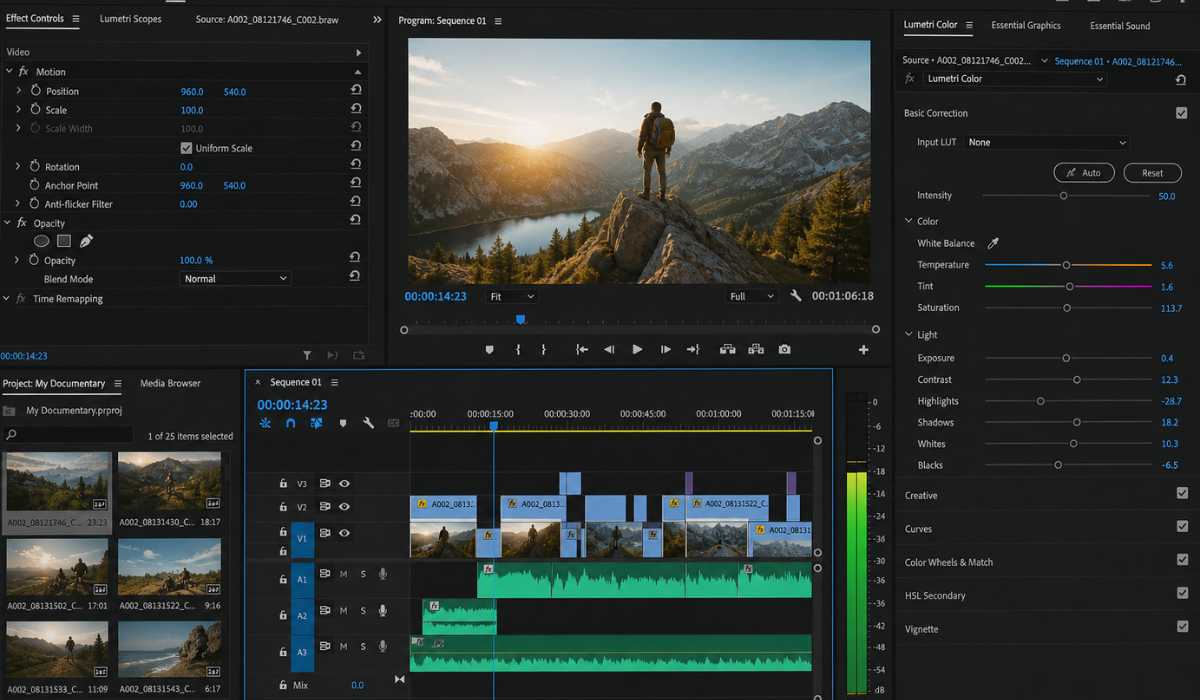
Adobe Premiere Pro is one of the most effective video editing software tools utilized by filmmakers, YouTubers, and professional editors all over the world. It supports simple cutting and trimming to advanced 4K/8K editing, cinematic color grading, motion graphics, and workflows powered by AI.
The right system is needed to perform smoothly, render faster, and have a stable experience with editing due to its heavy processing requirements.
Adobe Premiere Pro System Requirements
Here are the minimum, recommended, and high-end requirements of Adobe Pro:
Minimum System Requirements (Entry-Level Editing)
| Component | Requirement |
|---|---|
| Operating System | Windows 10 (64-bit) version 22H2 or later / macOS 12 or later |
| CPU (Processor) | Intel 6th generation or AMD Ryzen 1000 series |
| RAM | 8 GB |
| Graphics Card (GPU) | 2 GB VRAM (DirectX 12 or Metal compatible) |
| Storage | 8 GB available space (SSD highly recommended) |
| Display | 1280 × 800 minimum resolution |
This is the minimum configuration to run Adobe Premiere Pro. It can only be used in simple editing operations such as trimming clips, simple cuts, and operations on low-resolution videos.
When one has to deal with effects or bigger projects, performance becomes limited.
Recommended System Requirements (Smooth Editing Experience)
| Component | Requirement |
|---|---|
| Operating System | Windows 11 (64-bit) or latest macOS |
| Processor (CPU) | Intel Core i7 (10th Gen or newer) / AMD Ryzen 7 (3700X or newer) |
| RAM | 16 GB (32 GB recommended for heavy editing) |
| Graphics Card (GPU) | NVIDIA RTX 3060 / RTX 4060 or AMD RX 6600 XT or higher |
| VRAM | 4–8 GB |
| Storage | NVMe SSD (500 GB or larger recommended) |
| Display | Full HD (1920 × 1080) or higher |
This arrangement is best suited to the majority of content creators as well as freelancers. It enables 1080p and 4K editing without significant lag when multitasking or rendering heavy effects and provides stable playback and faster rendering.
High-End System Requirements (Professional Editing & 4K/8K Workflows)
| Component | Requirement |
|---|---|
| Operating System | Windows 11 or latest version |
| Processor (CPU) | Intel Core i9 (12th Gen or newer) / AMD Ryzen 9 (5900X or higher) |
| RAM | 32 GB to 64 GB |
| Graphics Card (GPU) | NVIDIA RTX 4070 / 4080 / 4090 or AMD RX 7900 XT |
| VRAM | 12–24 GB |
| Storage | 1 TB NVMe SSD + secondary storage drive |
| Display | 4K HDR display with DCI-P3 color support |
This is a professional configuration suited to professional editors who need to work with high-quality projects.
It guarantees ultra-smooth playback, rapid rendering, and a smooth workflow with complex workflows such as VFX, multi-camera editing, and 8K footage.
Importance of system requirements to Adobe Premiere Pro
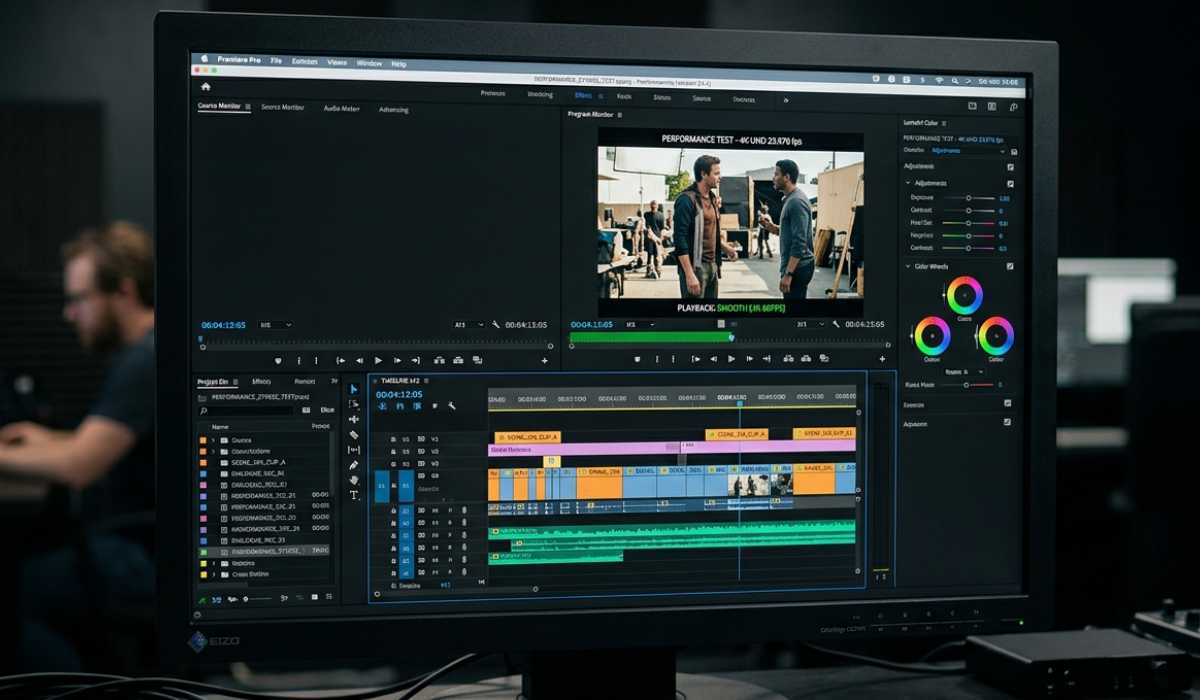
Adobe Premiere Pro is an extremely resource-intensive application where large video files, multiple audio tracks, and complex visual effects are processed simultaneously.
The performance problems start to be observed very quickly without appropriate hardware.
Performance Problems on Low-End Systems
Playback on underpowered systems is often laggy, timelines freeze, rendering is slow, and there are frequent crashes.
Even simple effects may turn troublesome to preview in real-time, so editing is frustrating and time-consuming.
Smooth Workflow on Optimized Systems
Once the system has met or surpassed the recommended requirements, Premiere Pro will be far more stable and responsive.
Real-time work, smooth application of effects, and much faster exportation of videos are some benefits that editors can get, which enhance their productivity and workflow efficiency.
Processor (CPU) Requirements
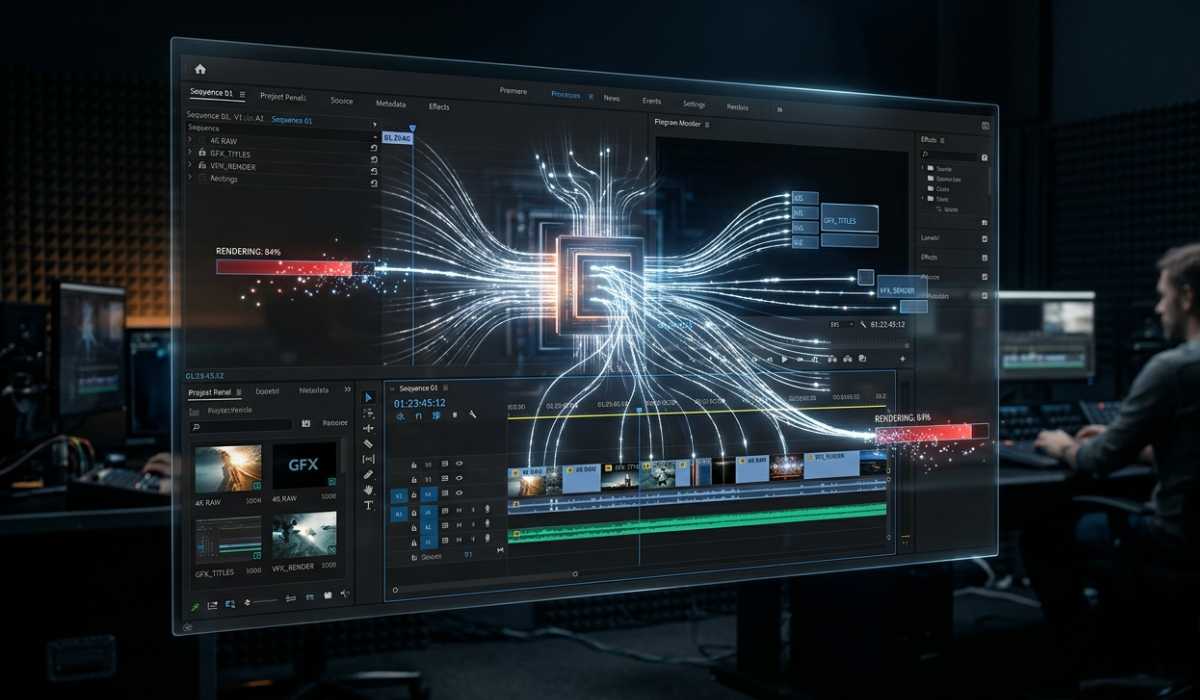
One of the most significant elements in the performance of video editing is the CPU, since it is the one that does the decoding, encoding, and most processing operations within Premiere Pro.
A modern multi-core computer, such as Intel Core i7/i9 or AMD Ryzen 7/9, can enable Premiere Pro to effectively allocate work across cores. This translates into quicker rendering, smoother playback, and a higher degree of multitasking when working on complex editing projects.
Graphics Card (GPU) Requirements
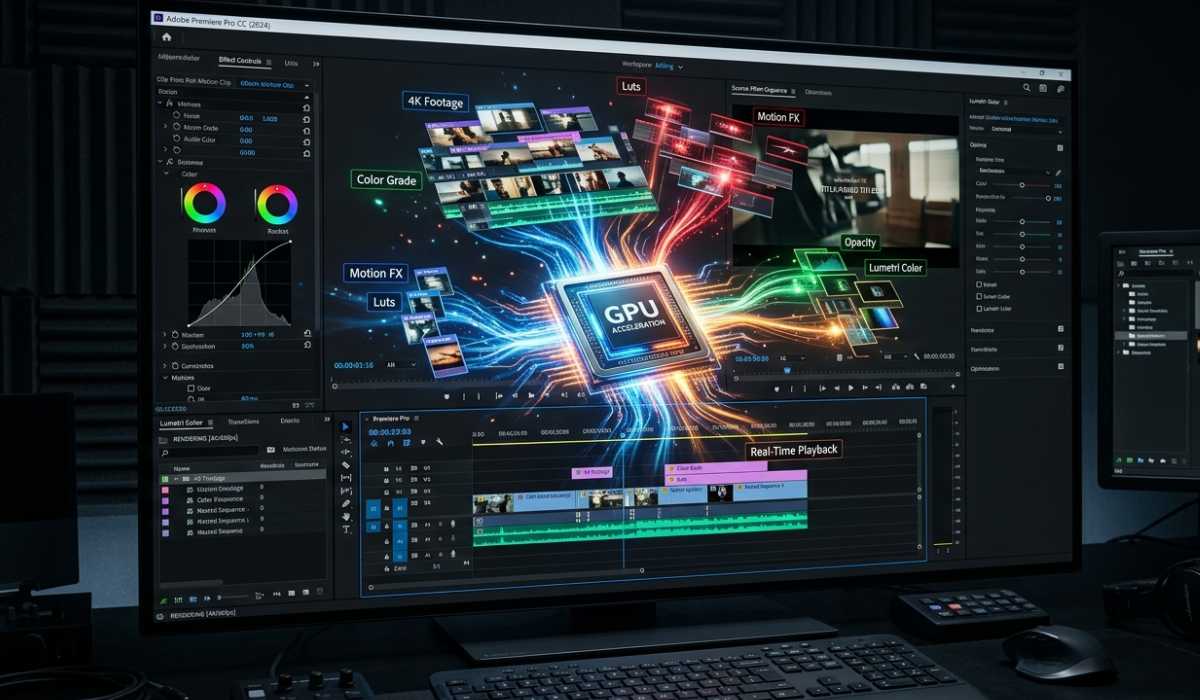
In Adobe Premiere Pro, the GPU is important in enhancing the video playback and visual effects. It frees up the CPU load and enhances system responsiveness in general.
Importance of GPU Acceleration
The GPU acceleration is used to render effects, transitions, and color grading in real time. It goes a long way to enhance performance in the playback, especially when dealing with high-resolution footage or multiple layers.
NVIDIA vs AMD Performance
The choice of NVIDIA RTX GPUs is normally preferred as CUDA is highly compatible with Adobe software. AMD GPUs are also powerful, particularly in the latest models with high VRAM memory.
RAM Requirements and Importance
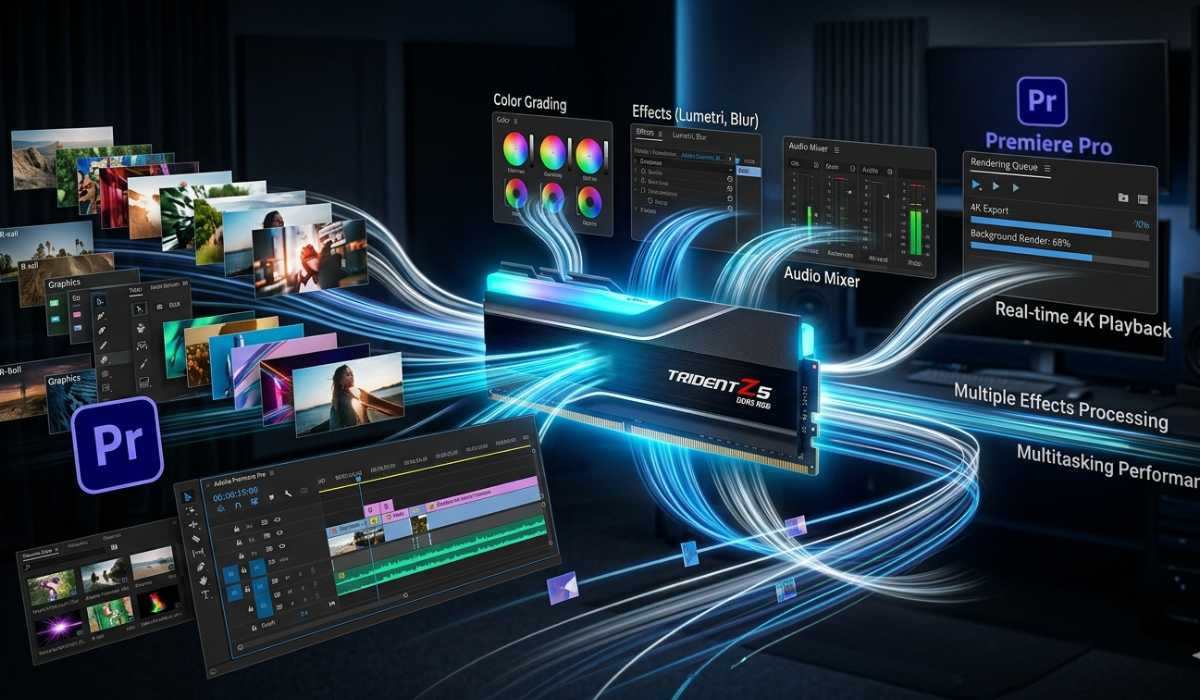
RAM will dictate how well Premiere Pro is able to handle having various tasks running simultaneously, including video playback, effects processing, and background rendering
8 GB RAM—Basic Editing
This is the bare minimum requirement and is only applicable to very light editing work and projects with low resolution.
16 GB RAM—Standard Editing
This is the suggested minimum to use to safely edit 1080p and light 4K video with a stable performance.
32 GB or More—Professional Editing
This setup is best suited to large projects, multiple layers, heavy effects, and professional-grade editing workflows without freezing.
Storage Requirement (SSD vs HDD)
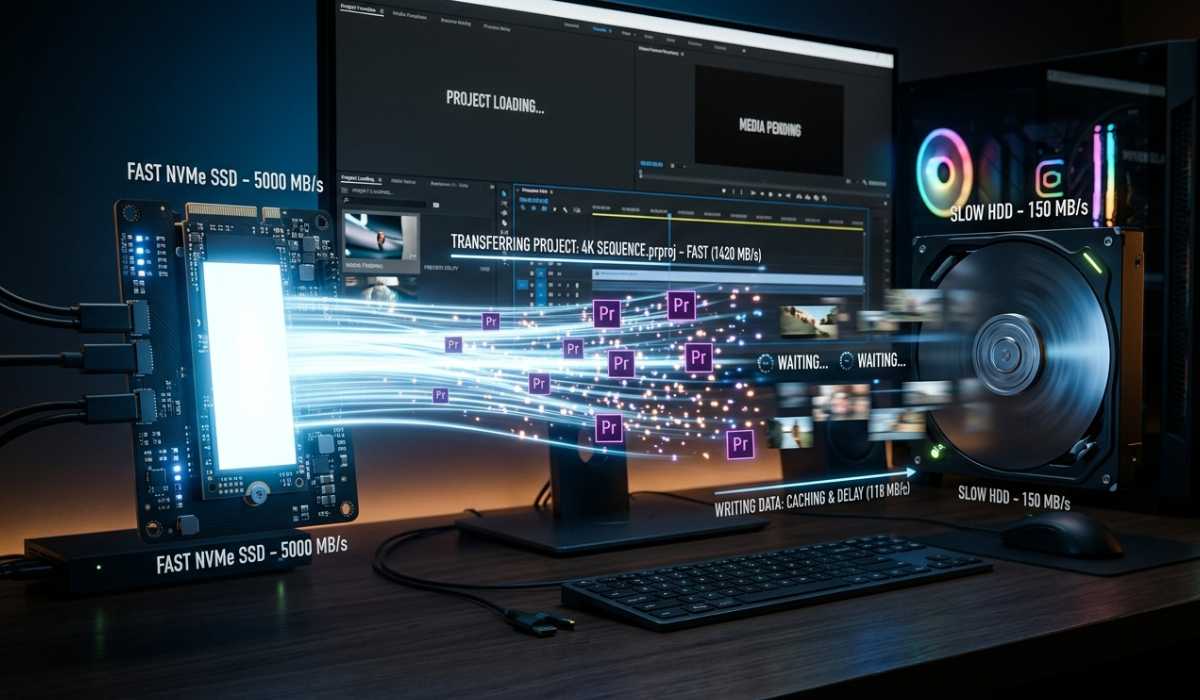
Storage speed directly affects the rate at which Premiere Pro loads projects, caches files, and exports videos.
Benefits of SSD Storage
The speed of SSDs is very high compared to HDDs; hence, it leads to a faster project loading time, smoother playback time, and shorter rendering times.
Recommended Storage System
NVMe SSD is recommended to operate software and run projects, and a second HDD or SSD can be utilized to store files and create a backup.
Display Requirements to Edit Accuracy
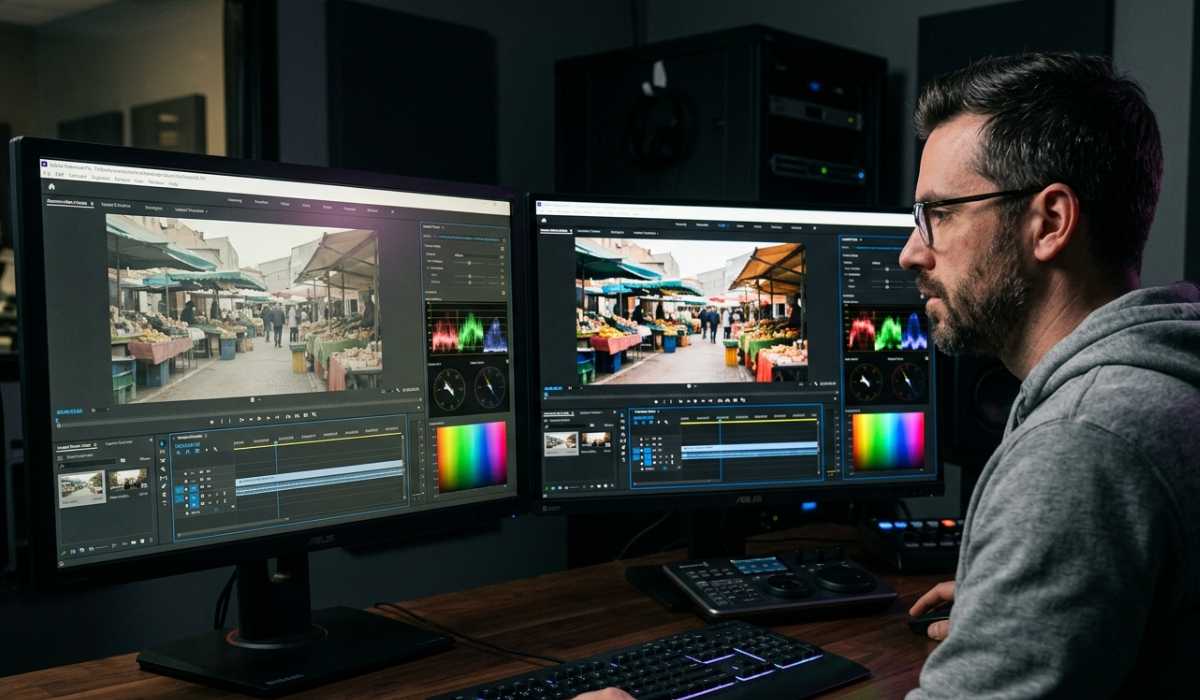
It should also be of high quality so as to have quality video editing and color correction.
Importance of Accuracy of Color
Wide color gamut monitors, such as Adobe RGB or DCI-P3, are designed to ensure that the appearance of colors in a display is consistent and professional across devices.
Resolution Requirements
Although Full HD is a decent option when one is a beginner, the 4K displays are suggested to be used by professional editors who may need the accurate details and visual clarity that 4K displays can provide.
Laptop vs Desktop with Premiere Pro
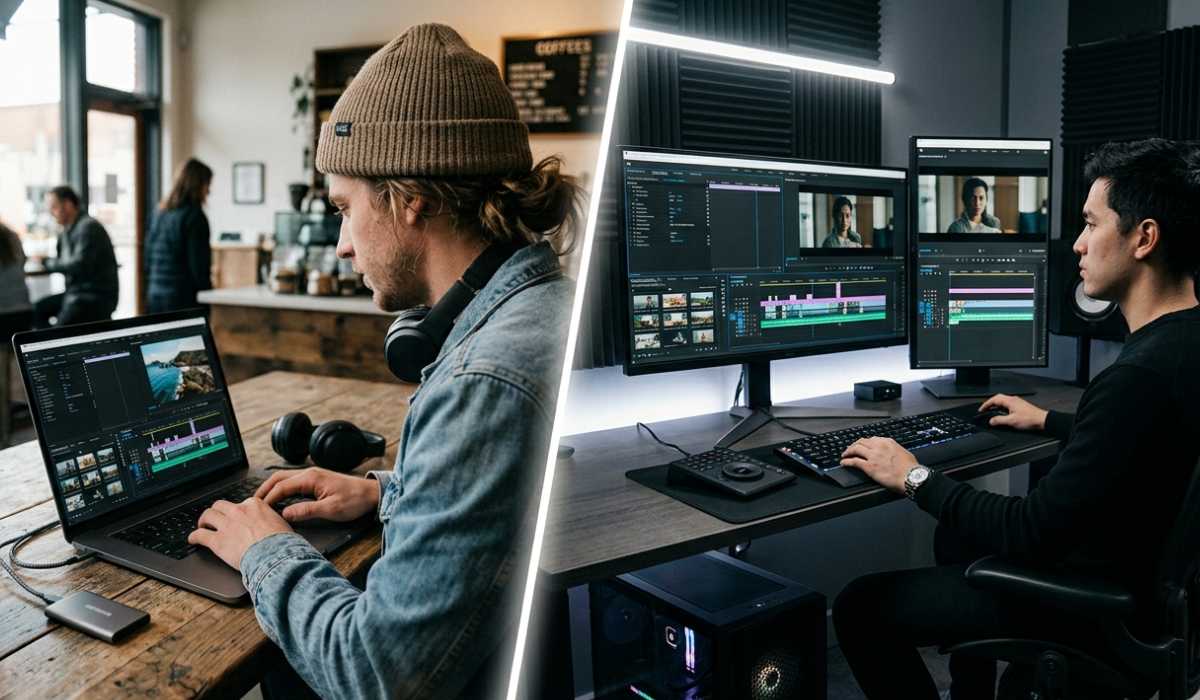
Laptops are convenient and portable and hence are suitable for students, freelancers, and editors who need to work on the go.
Desktops are better performing, have better cooling capabilities, and can be easily upgraded, making them ideal in professional video editing settings.
Optimization Tips for Better Performance
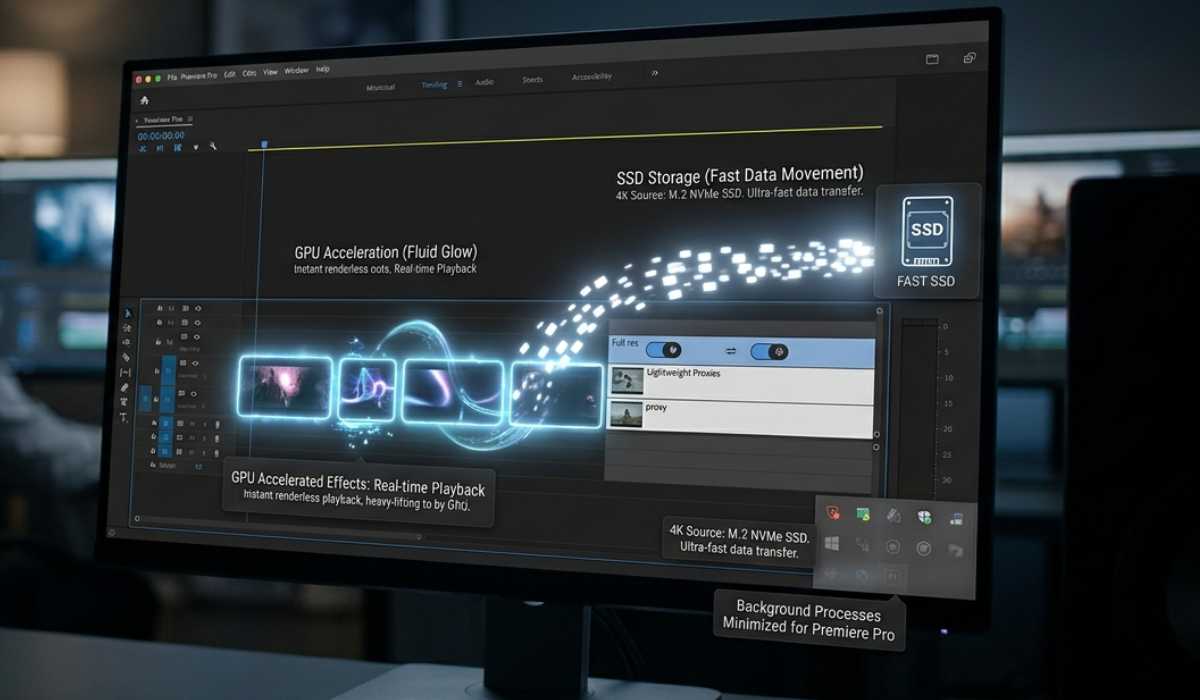
Here are some simple but effective optimization strategies to help you get the most out of your system and ensure smoother, more stable performance.
Use GPU Acceleration
Enabling GPU acceleration enhances the smoothness of playback and makes the process of rendering the image much faster.
Use Proxy Files
Proxy files can be used to relieve the load on the system when working with high-resolution footage, and thus, they are easier to edit.
Close Background Applications
Unnecessary apps should be closed, which will release RAM and CPU resources and will enhance overall performance.
Store Media on SSD
Having active project files stored in SSD storage ensures quicker loading and increased ease of editing the files.
Additional Tips for Better Premiere Pro Performance
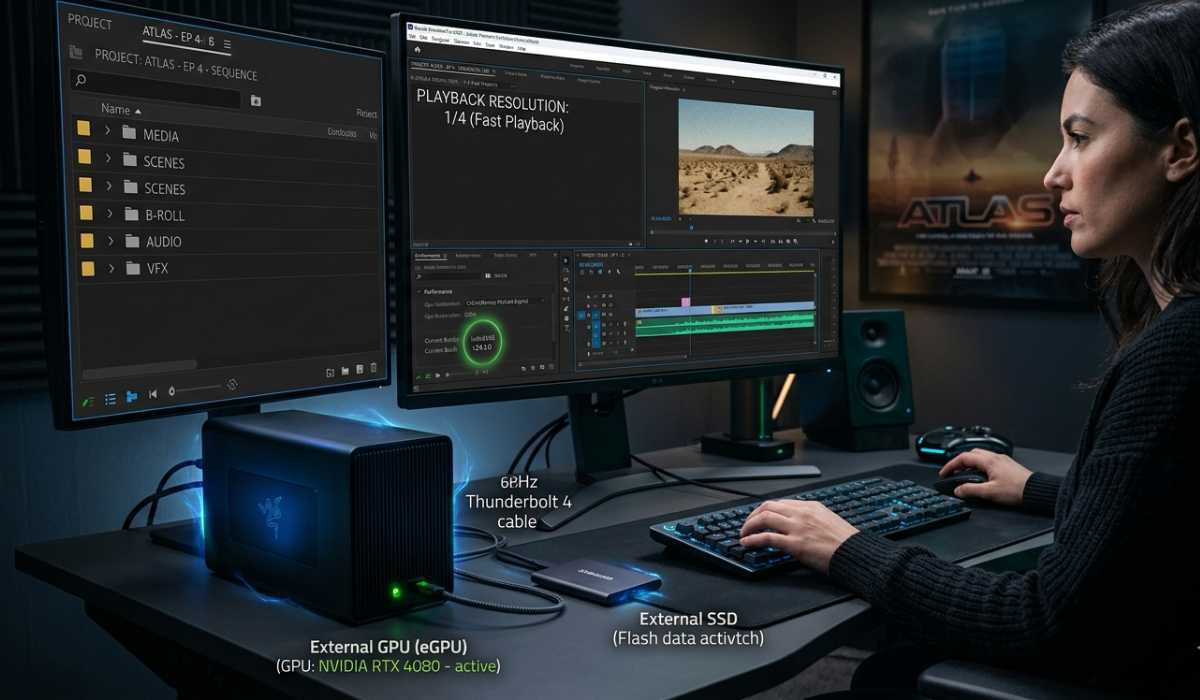
- Playback resolution should be lower when making edits (1/2 or 1/4).
- Maintain software at the latest version.
- Arrange the files in the media appropriately to prevent wastage of time.
- An external GPU (when the laptop supports it) can be used to achieve better performance.
- Even on mid-range systems, such little changes can really enhance the editing speed.
Typical Problems with Low-End Systems
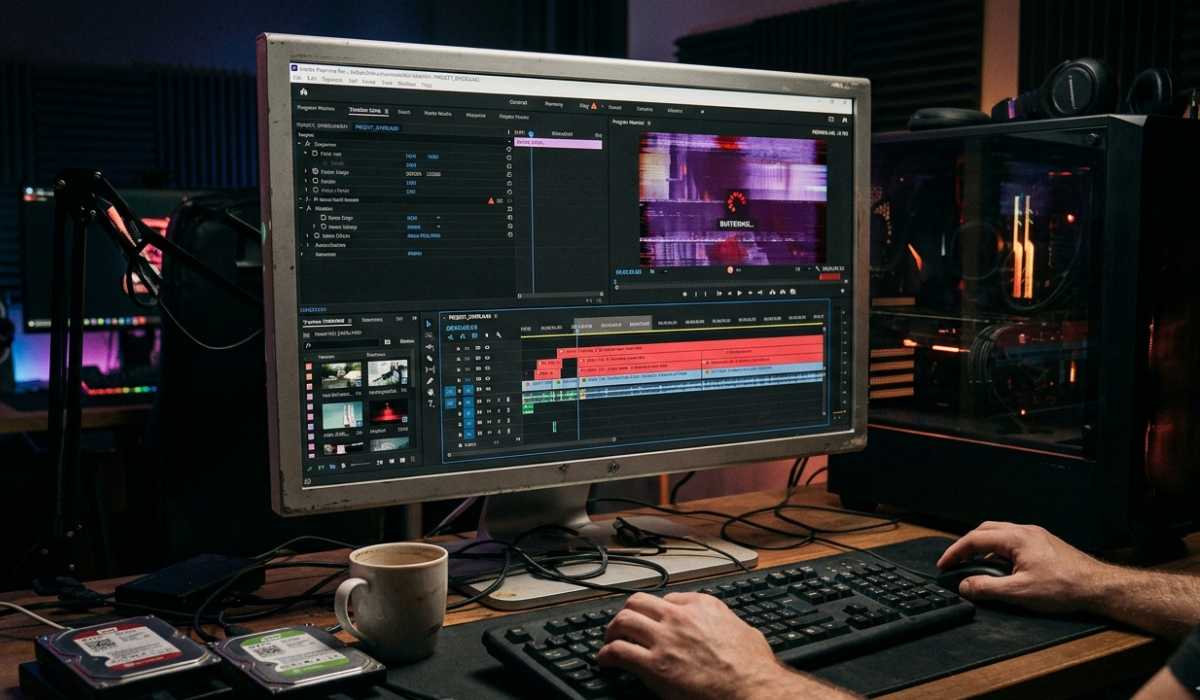
Lag, crashes, and slow rendering can be issues in low-end systems because of a lack of CPU power, low RAM, or poor performance of the graphics card.
Such problems can have a disastrous effect on the productivity and quality of editing. Most of these problems are normally solved by upgrading the hardware.
Final Thoughts
Adobe Premiere Pro is a robust professional video editing program, but it needs a well-balanced system to perform at its best. Although it is capable of being used in the simplest of hardware, it requires much more powerful specifications to do serious editing work.
In short, minimum requirements are acceptable to the beginners, recommended systems are acceptable to the content creators, and high-end systems are necessary to support professional film production. The appropriate configuration will guarantee an easier editing process, a quicker rendering process, and a far more efficient creative process.